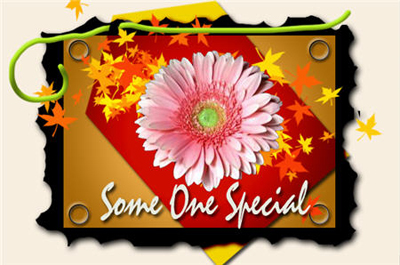
Learn how to create background to be used in digital Scrap Book by following this step-by-step tutorial.
In this tutorial we will use Marquee, Brush, Eraser and Lasso tools and other effects. In creating a digital layout from scratch, there are the same basic steps: design background paper, add photos, create photo mats or accent papers, add effects such as drop shadowing, create embellishments (if desired), and finish with titles and journaling.
1. Open a new document in Photoshop of any size (here I use 600 / 400 px) and fill with #F8EEE0 background.

2. Create a new layer and with Rectangular Marquee create a shape as shown on the middle of the document.
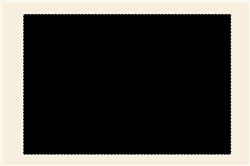
3. Now select Eraser Tool applies around as shown below:
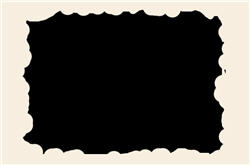
4. Again create a rectangular shape using Rectangular Marquee tool on a new layer and apply the layer style as shown below:
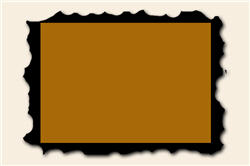
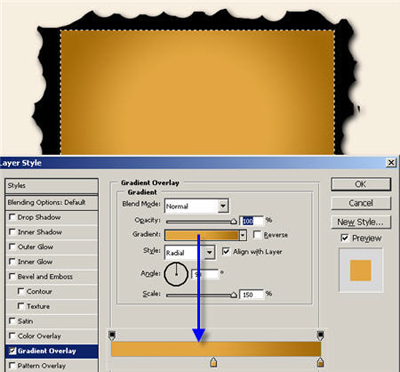
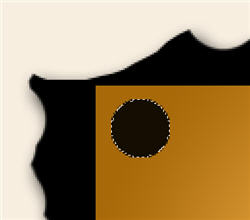
5. Create a circle around the corner using Marquee tool and fill with Black color on a new layer. Then go to Select > Modify > Contract with 2px and then press Delete.
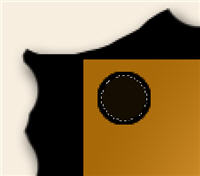
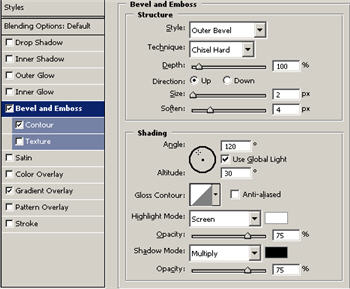
6. Double-click on the layer and apply the settings as shown below:
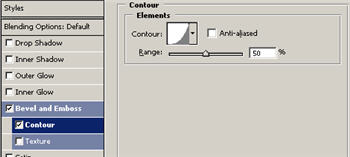
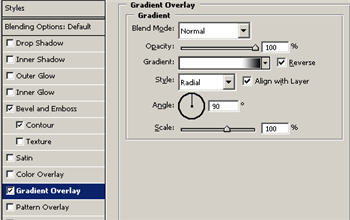
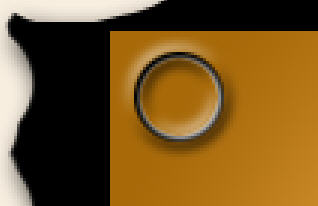
7. Duplicate the layer for 3times and place on every corner of the rectangle.
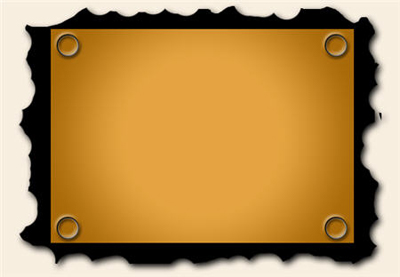
8. Now create a shape using Polygonal Lasso tool as shown and fill with #936018 color on a new layer.
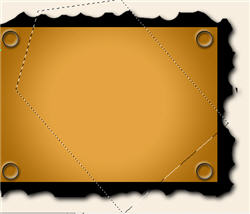
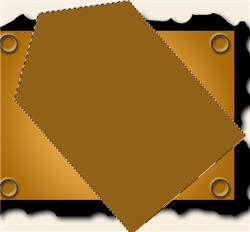
9. With Elliptical Marquee tool create a circle(press Shift + Drag) on the top of the new layer and then press Delete.
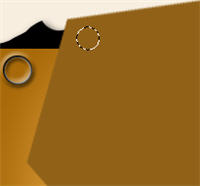
10. Now apply the default Layer Style for Drop Shadow and Set the layer Blending Mode to Color Burn.
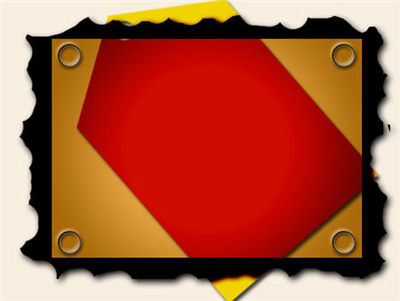
11. Add you image on the top of everything.
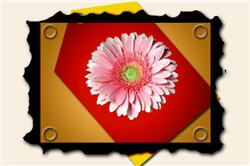
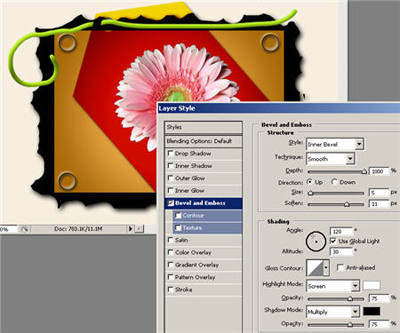
12. To add a thread to the Scrap Book applies the brush tool on a new layer and the add Blending Mode options as shown below:
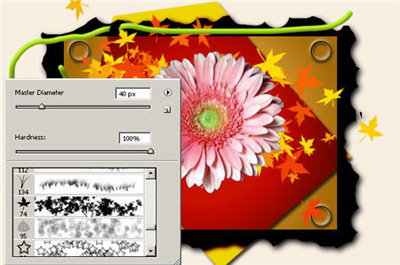
13. Now select the Brush tool as shown below, apply on a new layer just below the flower layer.
14. Now add your text to the scrapbook (I use shadow layer style with default settings). Here's the finished picture.