

Requirements
- Flash MX or higher.
1. Start by creating a new document in Flash.
2. Select the Text Tool, and change the Text Type to Dynamic.
3. Draw a text box on the Stage, this is where the text from the file will be displayed.
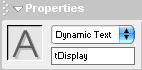
4. Select the text box with the Selection Tool, and give the text box an instance name of "tDisplay".
5. Select Frame 1 of your movie and press F9 to open the Actions Panel.
6. Add the following code to the Actions Panel:
|
lvLoader = new LoadVars(); //Declares a LoadVars named lvLoader.
lvLoader.onLoad = function(success) //When the file is loaded this function is called. { if(success) //If file is succesfully loaded. { tDisplay.text = lvLoader.tContent; //Change tDisplay's text to show the tContent that was loaded through lvLoader. } } lvLoader.load("text.txt"); //Load the text file. |
7. Now open up Notepad or another basic text editor. (Not Microsoft Word)
8. Type:
| tContent=This is the text that will be loaded. |
9. Save the file as "text.txt" (The extension .txt is already added in notepad) in the same folder as your flash document.
10. When you test your Movie it should now load the text from the text file and display it in the text box.
11. If you wish to load more than one variable then separate them with "&" like:
| tContent=This is the text that will be loaded.&tContent2=This is more text that will be loaded. |
