


In this tutorial I will teach you how to make a "Junky Looking 8 Ball".
The after result will look like this.
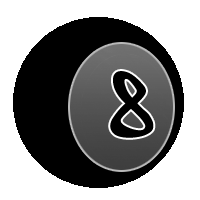
Make a new file with the size 200 x 200 pixels.
Now select the Ellipse Tool and hold shift, draw a circular just a bit spammer than you canvas size. Select a brush tool and click a little pop up window should have come up just hit ok. But don't draw on you image.
We should now have something like this.
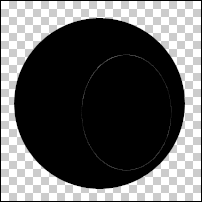
Select your Ellipse Marquee tool and make a selection like below.
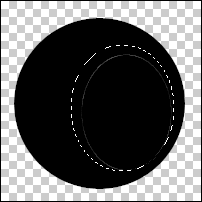
Pick any color and fill it in.
You can now deselect and goto blending options.
Goto stroke and make select the color white and set the width to 2 pixels.
Now goto "Gradient Overlay" and click the gradient colors so it brings up a new window like below.
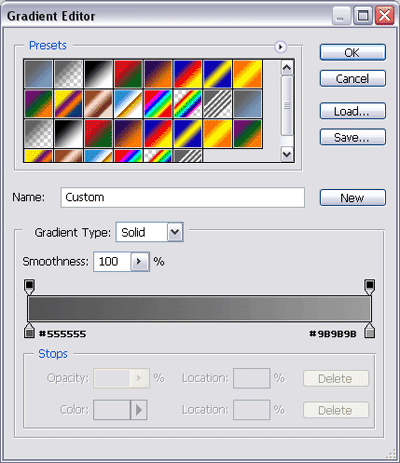
Click ok and it should have the blending that you just applied on it.
Change the "Opacity"down to 72.
Now we will be using the font tool.
I used a font called "Street Soul" which can be found at www.DaFont.com
Now draw a big box box using the font tool, then change the font size to "100 pt" and have it on strong, Hit the "8" key.
Now before we click away you will need to use the "Create warped text" tool.
select "Arc Lower" from the drop down box then apply the settings below.
-Horizontal
Blend: +50
Horizontal: -24
vertical Distortion: +12
And hit ok.
Now goto blending options, Stroke and make the color white and the width 2 pixels. You can hit ok now, Then change the layer "Opacity" to 72% and there you have it a "Junky 8 Ball".
The reason I call it junky is because of the 8 font.
Try playing around with the "Create warped text" tool and the "Gradient Overlay" option.
I hope you liked this as I randomly made it.
Oh and if you feel like it maybe add a gold chain or something.
