1. To start this tutorial, open you Adobe Photoshop 7.0 Go to file and create a brand new canvas. On the new canvas with a black background, select your Brush Tool
 , choose a 20 pixel, round brush
 . Layer >> New >> Layer and name it Layer 1. With your Brush Tool, draw an S shape on Layer 1.

2. Filter >> Distort >> Twirl and set the angle to 500 degrees. You should have something like this by now:

3. Right click on Layer 1 in your Layers Palette, Duplicate Layer. This should be a fun process!
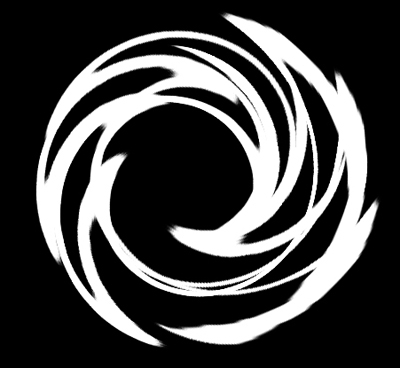
4. Edit >> Transform >> Rotate and rotate it about 45 degrees. Do this one more time, and you'll get something like this:
5. Click the Eye
 next to your Background Layer in your Layers Palette to make that layer invisible. Then, go to Layers >> Merge Visible. Now you only have two layers, your background and the layer I'll refer to as Layer 1. You can now make your Background Layer visible again by clicking the eye once more.
6. Layer >> New >> Layer and name it Layer 2. With your Brush Tool and any sized round, feathered brush, draw a circle on top of the white on Layer 2 with any red color (I used #FF0000).
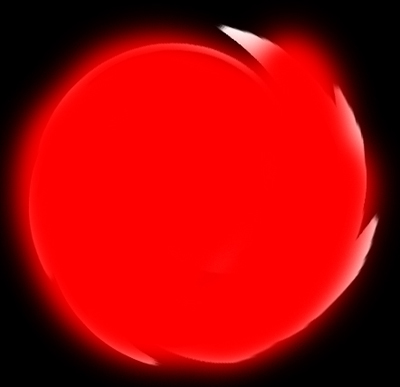
7. Set Layer 2's blending effect to Lighten to get this:

8. Layer >> New >> Layer and name it Layer 3. On Layer 3, with the same brush, draw in a yellow (I used #FFF000) circle that is smaller than the red one.

9. Set Layer 3's blending effect to Lighten also, and you'll get this:
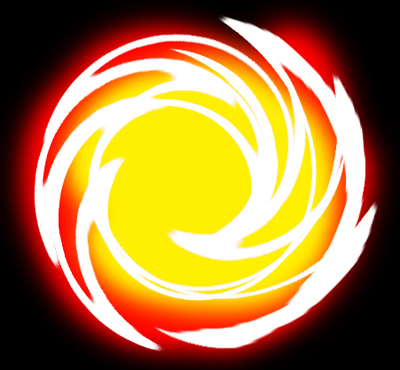
10. Layer >> Flatten Image. Your Simple Fireball is done.
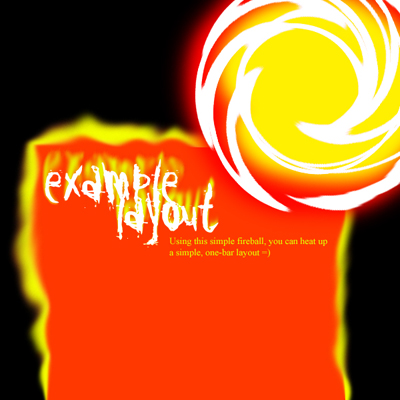
Your fireball is basically done now. You can experiment with your adobe and go around testing what you can do with it. Here what I came up with. Not your best layout but it brings unique personality!