


1. Open a new document by clicking on File -> New.
2. Select Text tool go to the properties inspector. In the Text Type list, select Static. Then change the font, color and size if you want.
3. Draw a text field on the stage and type "Your Name".
4. Again select text tool and draw another text field on the stage a couple of inches beneath the first text field and type "Hello" . Make sure that Text Type is Static.
5. Now we will create Input Text Field. Select Text tool and select "Input Text" from Properties Inspector. Also click on the Show Border Around Text icon.
6. Draw a text box to the right of the "Name" filed. In the Properties Inspector, in Var field type "your name" as variable for Name field.
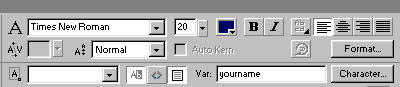
7. Draw another input text field to the right of the "Hello" text field with the same variable name "your name".
8. Test the movie by clicking Ctrl+Enter Keys. Type your name in "Your name" field. Your name will appear simultaneously next to the "Hello" field because both text fields has the same variable. Enter your name:
Download Source here
