1. Start a new document. Create a New layer, said it "Earth". Select Elliptical Marquee Tool and draw a nice round Circle (Hold down Shift Key to draw a nice round circle). Press "D" to reset the colors.
Go to Filter>Render>Clouds. Now Apply Difference Clouds and Press Ctrl+F two times to apply difference Clouds two times. Do't Deselect it..
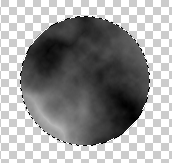
2. Go to Filter>Distort>Spherize, set its amount to 100%. Press Ctrl+F to spherize it one more time. Now you can Deselect it.
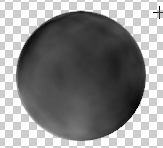
3. Now its time to give some colors to Our Earth. Go to Select>Color Range. With the help of Color Range select the darker parts of the earth.
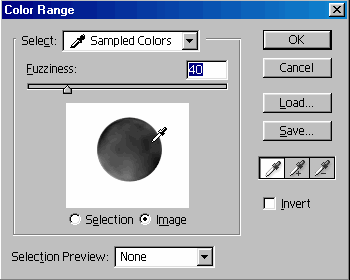
After applying the Color Range your image will look like:
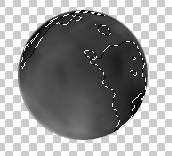
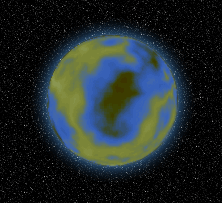
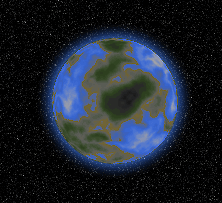
4. To Color your Earth, Select Hue/Saturation from Image>Adjustments>Hue/Saturation. After applying Color Range and Hue/Saturation your Earth like look like this:
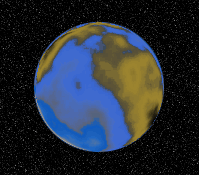
Give some Outer Glow.
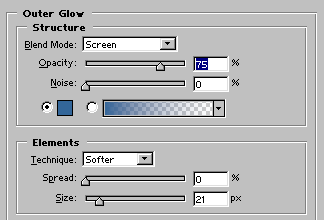
After applying outer Glow and Stars your Earth is look like this: Wants to add Stars?
Create a New layer, Fill this layer with black. Go to Filter>Noise>Add Noise and set these settings:
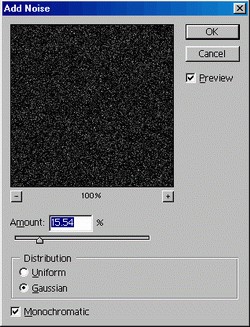
Duplicate this layer and set its mode to Soft light or Overlay.