

Ever tried doing a tutorial for a special text effect that has had loads of images of blending option settings? Ever found it annoying, confusing and time consuming? Well I for one have, and that's why all the text effects at apdz.com have layer styles included in them. Unfortunately not everyone knows how to use them or make them so that's what this little guide is here for.
Make A Base Layer Style
Making layer styles is easy. Saving is also easy but saving it in a way that is useful for others isn't always.
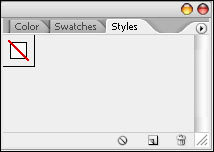
First of all we need to make a blank layer menu so that we can just save the layer style we want instead of saving it with all the default layer styles that photoshop comes with. To do this open the layer style menu if you don't already have it open by going to Window>Style and when the window shows up, delete all the styles in it apart from the first one which is a square with a red line going through it diagonally. We need this square since we can't save the layer style without it present. We should be left with a layer window something like this:
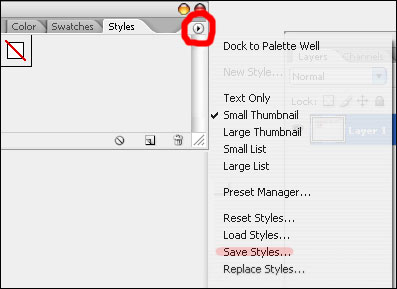
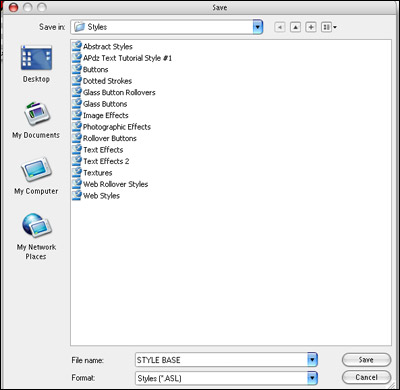
The press the little circle with a triangle button at the top right of the window (as show in the image below) and go to save style. Don't worry as this will not overwrite all the default layer styles!!! A window will come up and you can save the current selection of layer styles (which should be nothing apart from the blank style) with a name of your choice. I named it "STYLE BASE" as this is the base which I save layer styles for people on.
Ok now that's as hard as this guide gets
Saving A Layer Style For Others
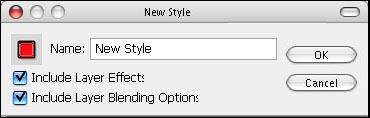
To save it, after you apply your settings, just press "New Style" as shown in the image below. Make sure the base style is loaded. (To load it, press the triangle button in the layer window and go to Replace Styles.. and load your base style up.
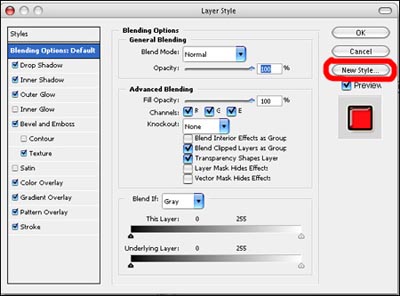
Now you will be left with your empty layer style and your newly saved layer style. From here, you can either save the style (by pressing the triangle button and "Save Styles.." or you can delete the empty style and then save the style. Just remember you can't save a style if there are no styles in it. That is why we have to have an empty style in our base style. (A bit confusing I know >_< )
Also remember while saving your style to check the "Include layer blending options" mode since this is how new users can see the settings used to achieve the effect and learn from it. Although you can just as easily keep it unchecked to stop people from stealing the settings used to make the effect.
Anyway, now that you have saved your style, you can send it to others and this will save them having to spend time matching their layer settings up with screen shot settings of your layer settings from a tutorial.
Applying Layer Styles
Applying the layer styles is easy. You just need to drag the .asl file (the layer style file extension) into photoshop and it will be loaded into your layer style window. The good thing is, only the saved layer style will show up instead of it and all the default layer styles which would have happened if you did not save the style to your base layer style.
Anyway I really hope this tutorial has helped some of you. Especially those that make tutorials with loads of images of the different settings. It's true that that method may help the user but I personally feel it is too time confusing and may frustrate them. Having a layer style for them to load up and look at the different settings saves time and they now also know how to use layer styles.
