Begin by opening your image and making sure the image is not flattened but that all of the elements are on a single layer. Then adjust your canvas size (Image > Canvas Size) to add 25 or 50 pixels to each side of the image, leaving a transparent border.
Now we'll create paper effect.
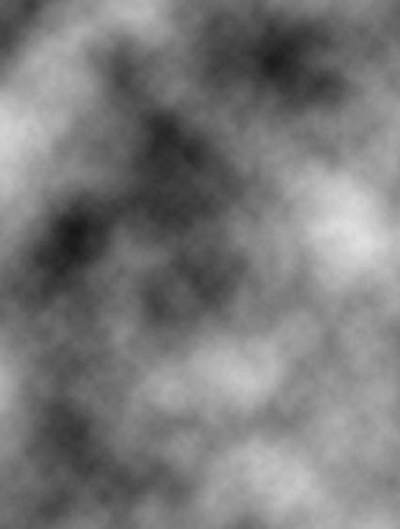
1. Go to your Layers palette and add a new layer. With this new layer selected, choose Filter > Render > Clouds.
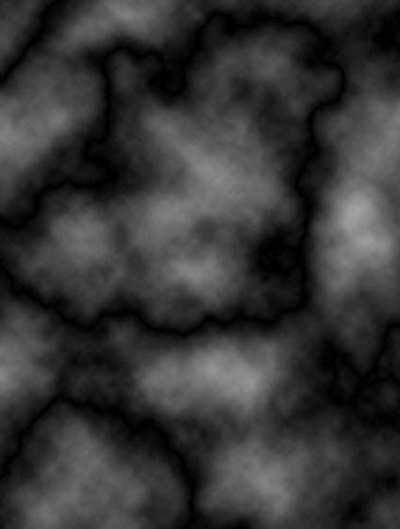
2. Now choose Filter > Render > Difference Clouds, and apply it four or six times until you get an interesting texture.
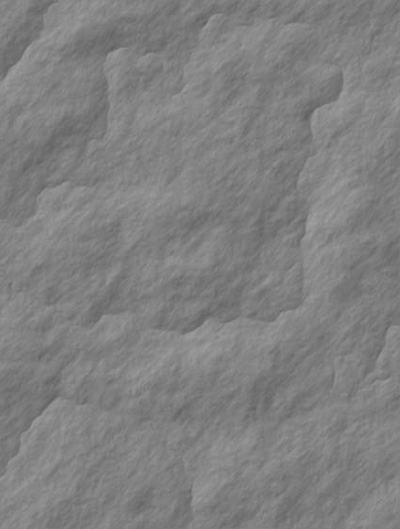
3. Choose Filter > Stylize Emboss, and set the height to 1 and the amount to 500.
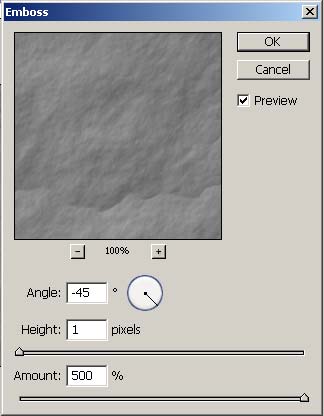
Great rumpled paper texture here: