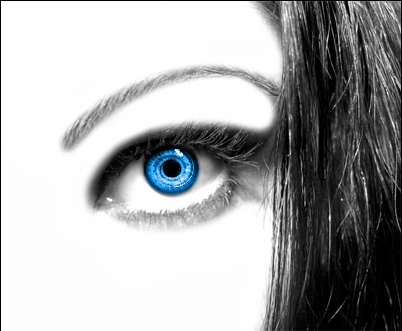
1. Get a picture of an Eye. This ones pretty nice.
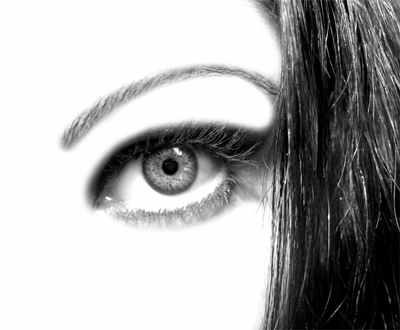
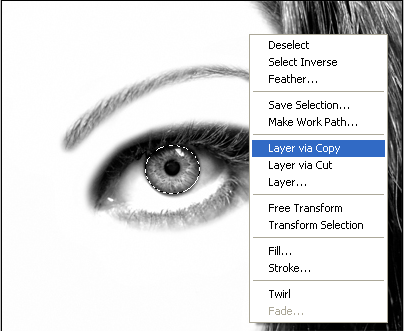
2. Take Your Elliptical Marquee Tool. And select the Pupil of the eye. Right click and select Copy. Then right click it again, and copy it again.
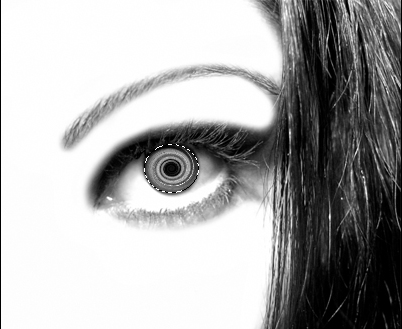
3. Now Hide That Layer for now, (By pressing the little Eye Icon next to the layer) And Ctrl+Click the Layer underneath it (This should select it) Now go: "Filter > Distort > Twirl : Angle - 915" Click Ok.
And it should look like this now.
4. Now With the Twirled Pupil Layer selected, go over to the Layer Style and change the style to overlay.
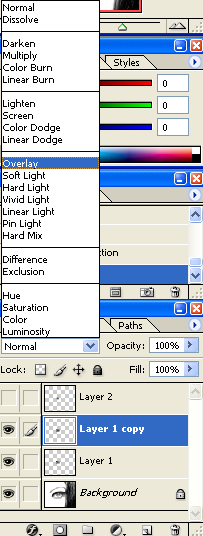
Now it should look something like this:
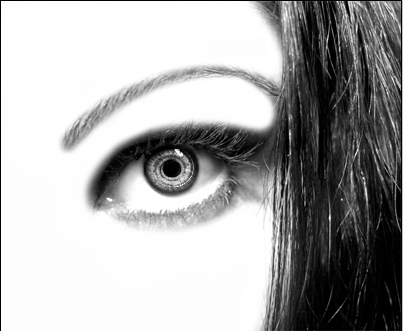
Now to add some color.
5. Selected the top layer and press "Ctrl+U" or go: "Image > Adjustments > Hue/Saturation" and use these settings:
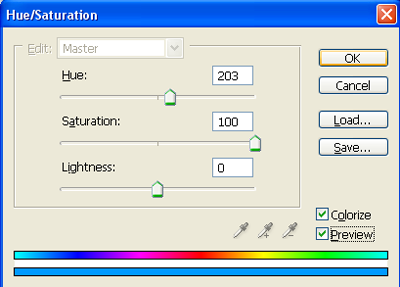
Press Ok.
And this should be your end result: