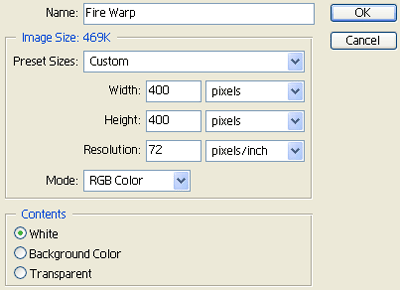
1. Create a new image (File > New or Ctrl+N):
2. Create a new layer (Layer > New > Layer or Shift+Ctrl+N).
3. Press D on your keyboard to reset your colors.
4. Filter > Render > Clouds.
5. Filter > Render > Difference Clouds.
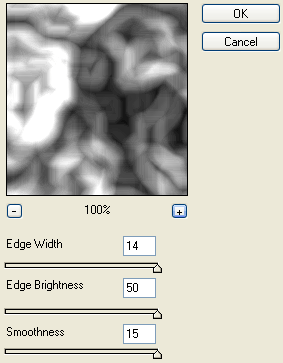
6. Filter > Brush Strokes > Accented Edges:
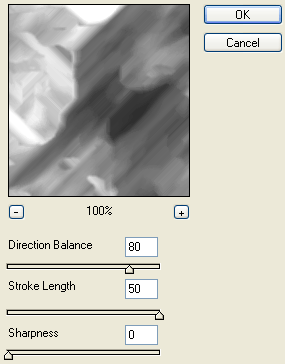
7. Filter > Brush Strokes > Angled Strokes:
8. Filter > Distort > Pinch:
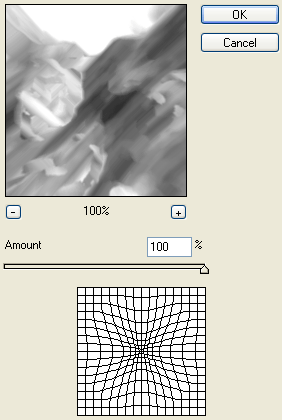
9. Filter > Distort > Twirl:
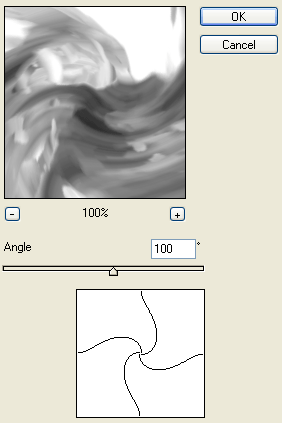
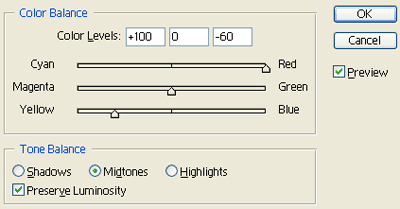
10. Lets add some color (Image > Adjustments > Color Balance):
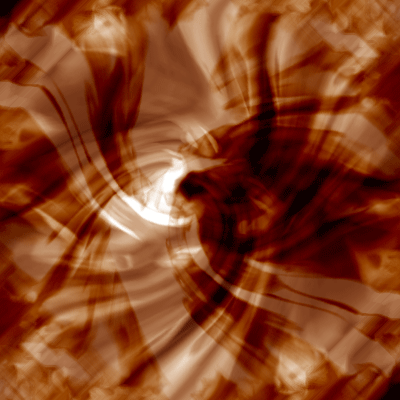
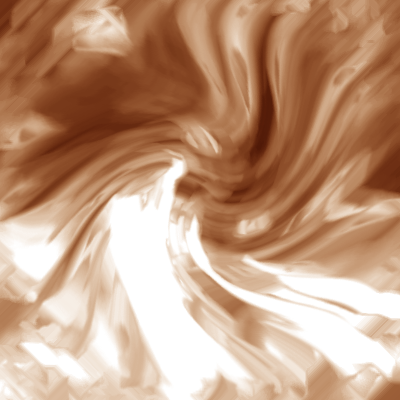
11. Now your image should look similar to the image below:
12. Duplicate the layer (Layer > Duplicate Layer or Ctrl J).
13. Edit > Transform > Flip Horizontal.
14. Edit > Transform > Flip Vertical.
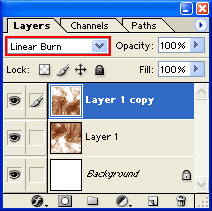
15. Set the layers Bleding Mode to Linear Burn:
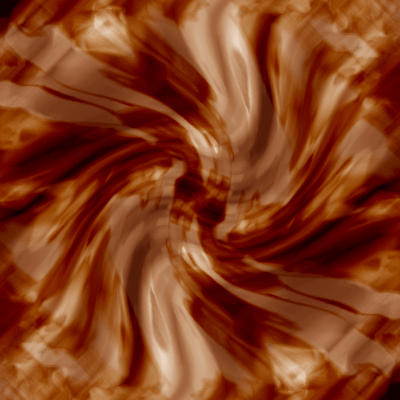
16. Your final result should look similar to the image below:
Additional Effect:
1. Filter > Distort > Twirl:
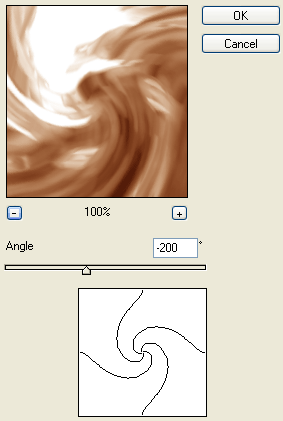
2. Final result should look similar to the image below: