1. Open a new document, my dimensions were 380x300
2. Filter > Render > Clouds
3. Filter > Pixelate > Mezzotint > Short Strokes
4. Filter > Blur > Radial Blur (Check Zoom, Amount 100, Quality best)
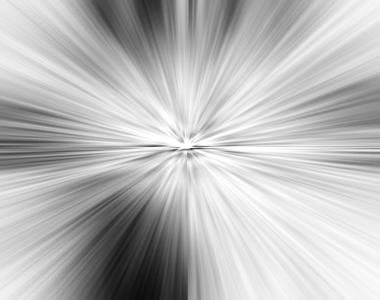
5. Press Ctrl + F, so far your design should look like this
6. Layer > Duplicate Layer
7. On the duplicated layer, Filter > Distort > Twirl (Amount 100)
8. Right Click on the layer to Blending Options, blend mode: lighten
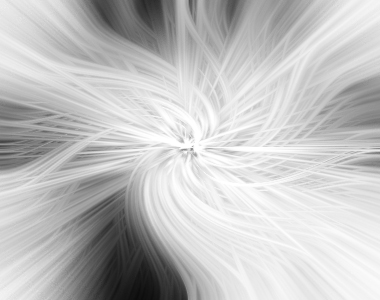
9. Ctrl + E for to merge the 2 layers, it should look like this now:
10. Image > Adjustments > Hue/Saturation, check on colorize and choose your colors.
11. Duplicate the layer and set the blend move to Overlay and fix up the opacity of the layer
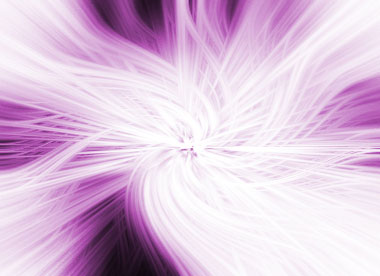
12. You are done! This is what your pic should look like: