This was a requested effect :) But it shows you how to make a chrome button. really nice.
1. Make a new image, ours is 175 x 70 - with a white background
2. Fill the background with a light grey [ we used #D4D4D4]
3. Create a new layer - layer > new > layer
4. With the marquee fixed size tool. make a selection of 120 x 20 pixels. then fill this any colour (dosent matter which)
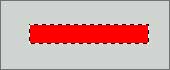
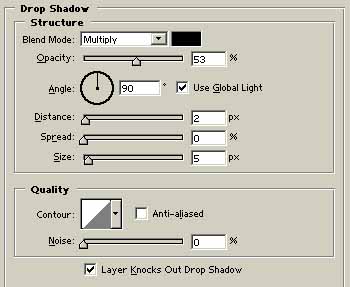
5. Click layer > layer style > blending options. then check drop shadow, gradient overlay and stroke.
6. For drop shaddow, give it the following settings:
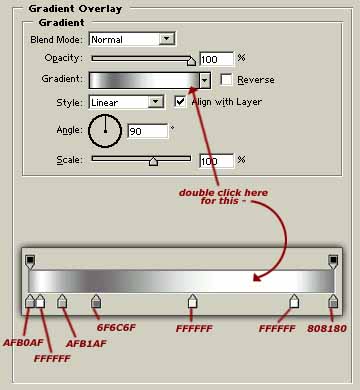
7. Give gradient overlay the following settings:
8. And finally stroke: size 1 - opacity 68% - colour 000000
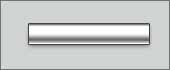
9. Click ok. you should have something like this -
10. Zoom right in, and grab the circular marquee tool. at the top, where you see the 2 grey boxes, make sure the 2nd from left one is selected like this:

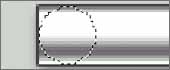
11. Without the one pixel border on your button, make a circular selection whilst holding SHIFT at both sides (image only shows the left hand side)
12. Now get the rectangular marquee tool, and select inbetween the 2 circles selection, hold SHIFT + CTRL and press I - to invert your selection.
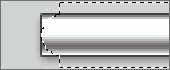
13. Then hit delete.
14. Hold CTRL and press D to deselect, and your finished!
We have added some extras to our button, yours could look the same!