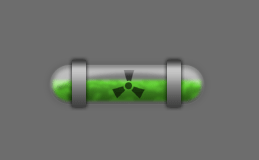
In this Adobe Photoshop Tutorial I will learn you how to make an awesome Glass Tube, filled with toxic waste!
Start up Adobe Photoshop CS or Adobe Photoshop CS2 (You can also use other versions, but all the tutorial images are made in CS). Make a new document and fill it with #6D6D6D.
Make a new Layer and call it "tube". Follow the steps below:
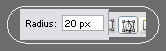
With rounded rectangle tool draw this shape, using the settings above.
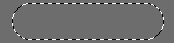
Right click your path, while rounded rectangle tool is selected and click "make selection".
Fill it with a color of your choice, doesn't matter which.

Right click Layer > Blending options and now add these settings.
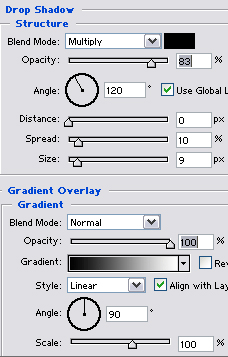
You will now have this

Lower the layer opacity to 17%. You will now have this.

Again make new layer and this time, call it: "reflection"
Ctrl+click the "tube" layer to generate his selection.
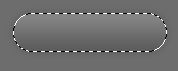
With the "reflection" layer active, drag a new selection over the old one, while holding down Alt. This way you delete a part of the old selection.
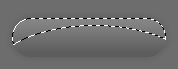
Go to Select > Modify > Contract. Fill in "3" and hit Ok. Now fill your selection with white.
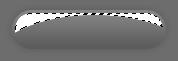
Deselect (Ctrl+d). Go to Filter > Blur > Gaussian Blur. Fill in "2" and hit Ok.
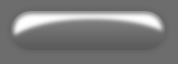
Lower the layer opacity to 49% to get the image below.
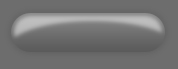
Create a new layer and do like I did below:
Now make a small rectangle like I did. The color doesn't matter.
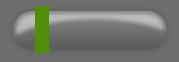
Apply these blending options.
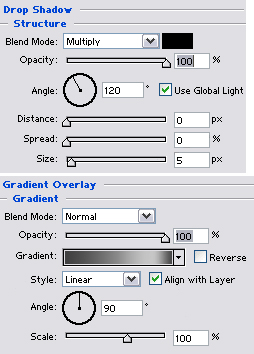
Use the gradient below for the overlay.

You will now have this!
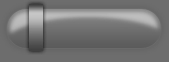
Just duplicate (Right click Layer > Duplicate layer) this layer and place it to the right. You now have your glass tube.
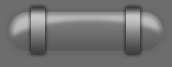
After creating a new layer underneath the "reflection" layer, it's time to create the toxic waste!
Ctrl+click your tube layer to generate his selection.
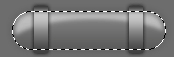
Delete half of it, by using the rectangular marquee tool, while holding down "Alt".
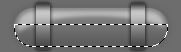
Go to Select > Modify > Contract. Fill in "3" and hit Ok.
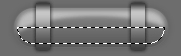
Go to Filter > Render > Clouds. While doing this, make sure your foreground and background colors are set like below.
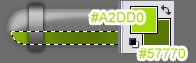
Deselect. Go to Filter > Distort > Ocean Ripple. And set both values to "9".
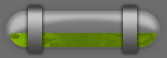
Go to Filter > Blur > Gaussian Blur. Fill in "0.8".
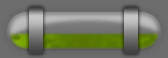
And now you're done.
And you're done! to create better toxic waste, make sure that your cloud's contrast is big. This way you will get a more liquid effect!