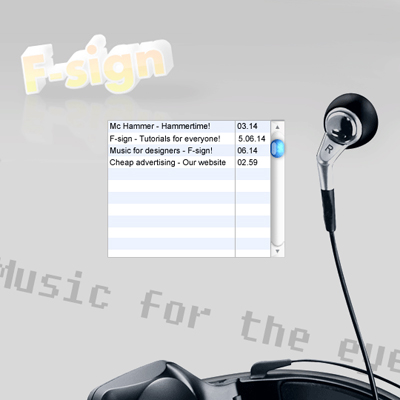
Start with a new document and fill your background with #D9D9D9. Make a new layer and call it "orb". Follow the steps below!
New path, using the rounded rectangle tool, with the settings below
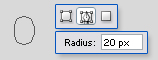
With pen tool, right click on path; Make selection. Keep the settings and hit OK.

Apply a gradient tool, using the colors below.
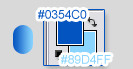
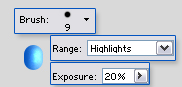
With dodge tool, carefully dodge the right, mine is dodged a bit to much. Use dodge settings below.
Again make a new layer and call it "orb reflection".
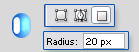
New shape on top of the orb, using rounded rectangle tool. Use the settings below and make sure your foreground color is White!
Change opacity to 51%.

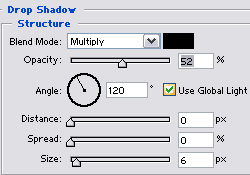
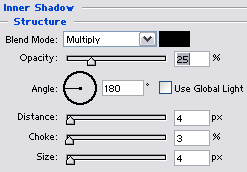
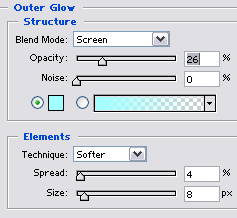
Apply these blending options to your "orb" layer.
Right click your layer; Blending options. And apply these blending options to it!
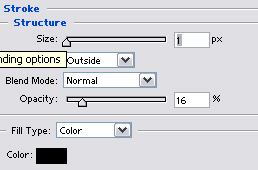
Make a new layer underneath the "orb" layer and call it "base".
Create a new shape using the rounded rectangle tool. Use the tool settings below!
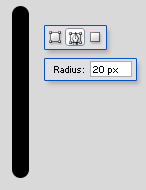
Now apply the blending options below (right click layer > Blending options). And place it underneath your orb!
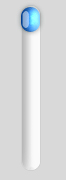
Apply these blending options:
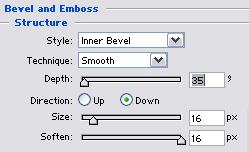
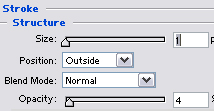
Create a new layer underneath your "orb", but on top of your "base" and call it: "button".
Create a small selection on the top of the base, using the rectangular marquee tool. MAke sure it has the same width as your base.
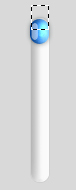
Apply a gradient with your gradient tool, using the colors below. then apply the blending options below!
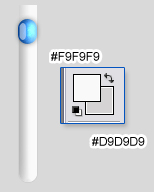
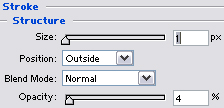
Blending options for your "button" layer:
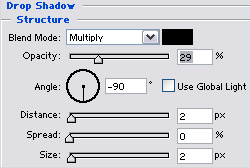
Get a new layer and call it "button reflection".
With your polygonal lasso tool, create a selection like I did.
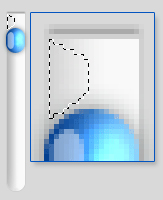
Now fill it with white and change the opacity to 57%
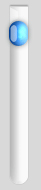
Now just duplicate the button and button reflection layer (right click layer > "Duplicate"), Flip them vertically (edit > transform > flip vertical) and place them on the right spot! here's my result (click to enlarge!):