Step 1.
Create a new document in photoshop that is 500x500 in size.
Step 2.
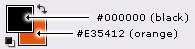
Set your foreground color to black (#000000), and your background color to orange (#E35412)
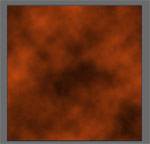
Go to Filter->Render->Clouds
Press Ctrl + F on your keyboard 5 times, to repeat the Render Clouds filter, 5 times.
Result:
Step 3.
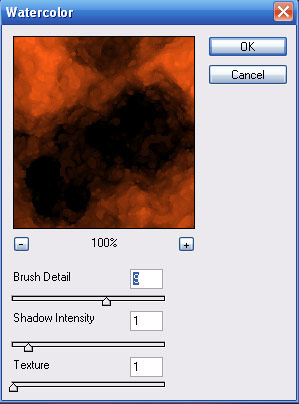
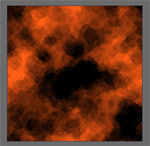
Go to Filter->Artistic->Watercolor and apply the following settings:
Result:
Step 4.
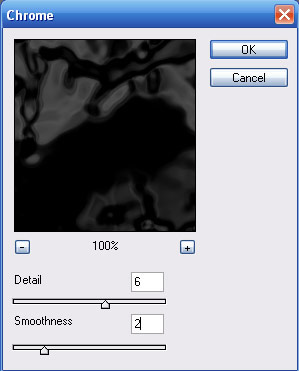
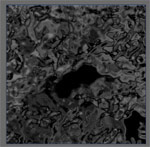
Go to Filter->Sketch->Chrome and apply the following settings:
Result:
Step 5.
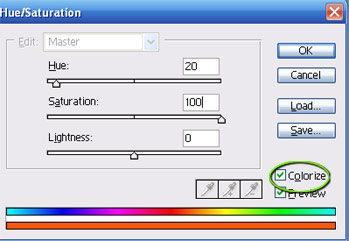
Press Ctrl + U on your keyboard to open up the Hue/Saturation utility and apply the following settings:
Note: Make sure "Colorize" is checked.
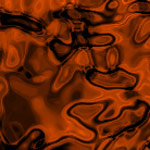
Result:
Step 6.
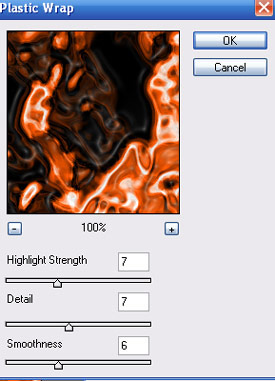
Go to Filter->Artistic->Plastic Wrap and use the following settings:
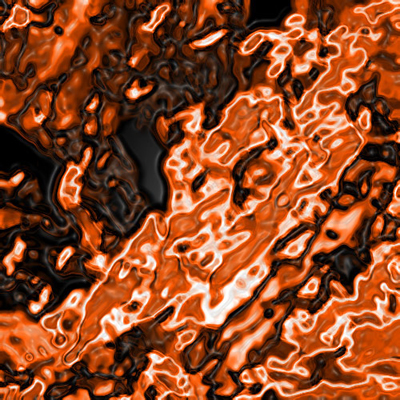
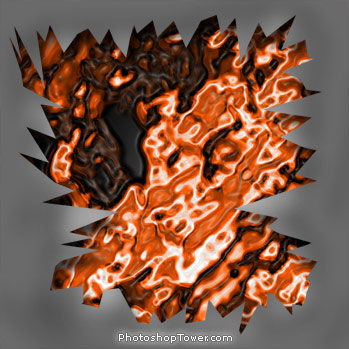
And that is how the Melting Magma background effect is created. Just a few short simple steps. Try adjusting some of the steps to create new and interesting effects.