


This tutorial with guide you through how to make a navigation bar for your site using a repeated image for the background and CSS to apply text on top of it. This tutorials takes in to account that you have a reasonable knowledge of Photoshop and CSS. You can see result here.
1. Create a new document 300x100
2. Set the background to #EEEEEE
3. Using the rectangular marquee tool make a large selection taking up most of the canvas like this:
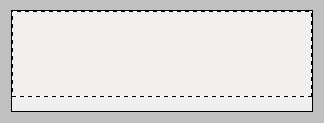
4. Create a new layer and fill the selection with any colour.
5. Right Click the layer and select Blending Options and use these options:
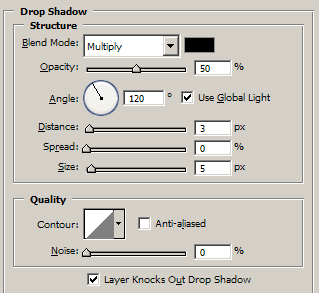
Blend Mode color: #000000
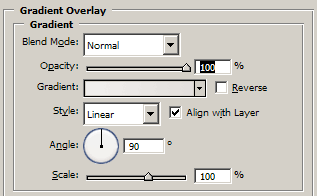
For the gradient use these settings:
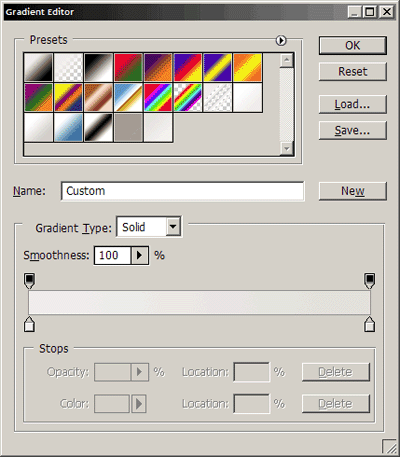
Gradient colors: #EEEEEE to #DDDDDD
6. Using the selection tool again create a small rectangle and delete this from Layer 1
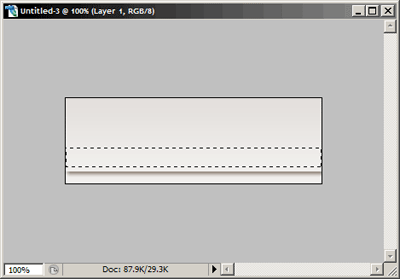
7. With the selection still active create a new layer and fill with any color.
8. Apply these Blending Options to the new layer:
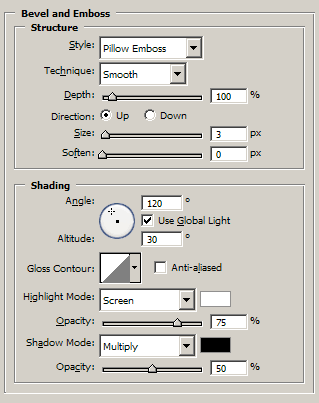
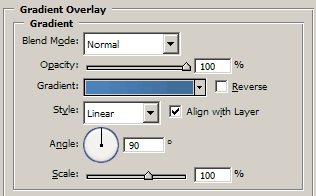
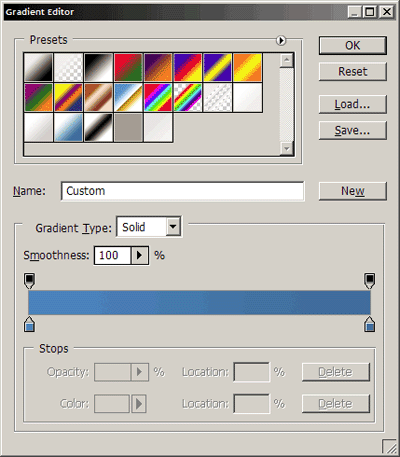
Gradient Colors: #0080C0 to #006699
9. Now select the Slice tool and slice it up like this:
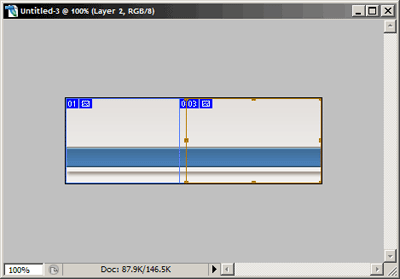
10. Go to Save For Web and use whatever image settings you wish to use.
11. You will get 3 images, you can delete the 2 sides, but keep the narrow one.
12. This can now be placed as a repeated image on the x axis. To do this use this CSS:
|
<style type="text/css">
<!-- body { background-image: url(navbarback_02.gif); background-repeat: repeat-x; background-color: #EEEEEE; } --> </style> |
This will place the image as the background and repeat it across the page.
This is an example of the layout - click here.
