


This tutorial with guide you through how to change the colour of a car:
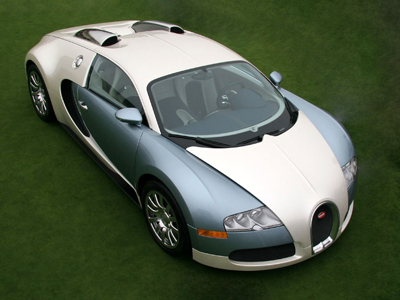
Original
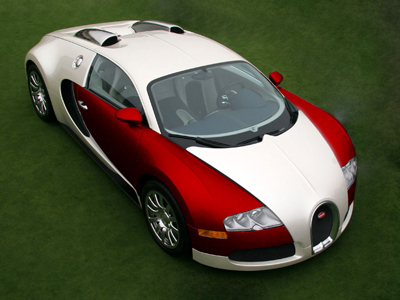
End Product
1. Open your original image in Photoshop.
2. First of all create a new layer then select the cars layer again
3. Select the Magic Wand Tool and hold down shift and press the blue areas of the car.
4. Get as much of the blue area as you can with the magic wand tool then fill it with red (#FF0000) on the new layer you created.
5. Change the layers opacity to 50% so you can see through the red and use a paint brush to fill in all the bits you missed and erase areas that shouldn't be red. Take your time with this, as the more time you take the better the finish will be once you finish.
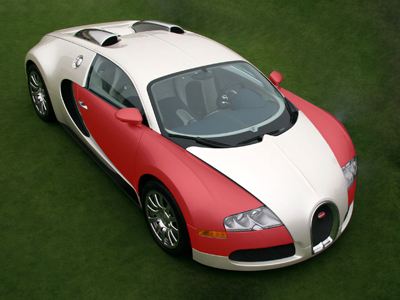
6. You should now have something like this:
7. Now change the opacity back to 100% and set the Blend Mode to Multiply.
Now you should have a nice new colour on your car, you can also do the same for the white of the car too using the same technique:
