


This tutorial with guide you through how to make a header bar for your website and is only limited by your imagination:
This tutorial takes in to account that you know the basics of Photoshop.
Grey Header Bar

Transparent Coloured Header Bar

Bright Colorful Header Bar

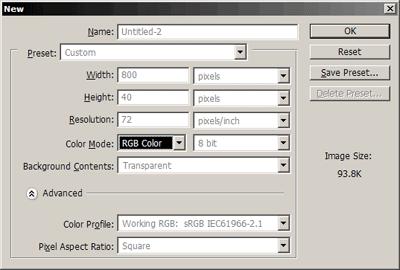
1. Open Photoshop and create a new image, 800x40.
2. Fill Layer 1 with a light grey to white gradient from top to bottom.
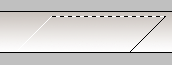
3. Using the Polygon Lasso Tool create a section like this:
4. Go to Select » Modify » Smooth then set to 20px. This should give you something like this:
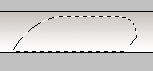
As the selection is touching the edge it doesn't smooth it.
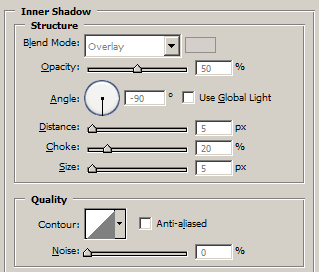
5. Create a new layer and fill it with white and apply these blending options:
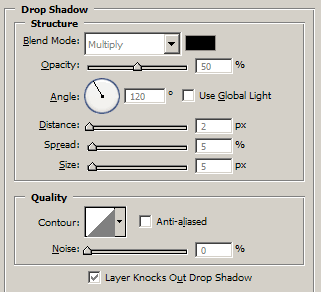
Blend Mode Colour set to #000000
Blend Mode Colour set to #D5CFCB
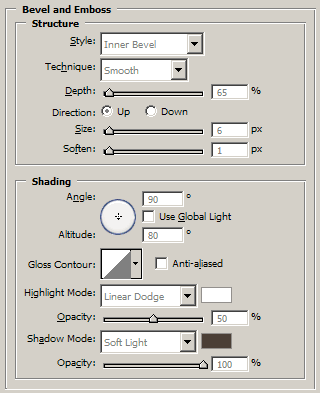
Highlight Mode set to #FFFFFF
Shadow Mode set to #4B3F36
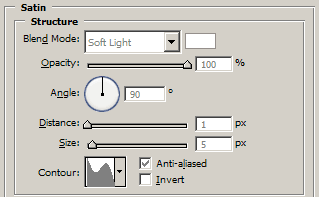
Blend Mode Colour set to #FFFFFF

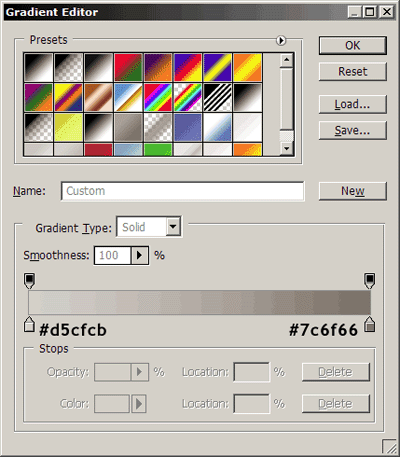
6. You should now have something like this:
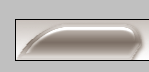
7. Now you can duplicate this tab and repeat it or create new shapes. You can also add other effects and text. If you want to make it a bit more colorful you can use the same blending options but with colours.
