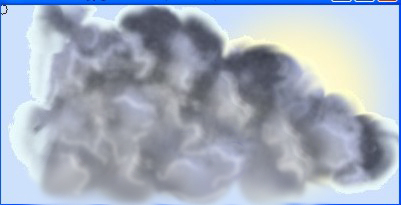
Here in this tutorial we will learn how to create clouds, with the help of some Photoshop Tools, techniques,and effects.
I will try to explain it in a very simple steps so it will be easy for you to create the cloud in photoshop.
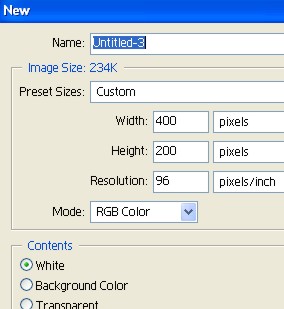
1. First of all open a new document [ here i have used , document size : width-400 / height - 200 / reso-96 ]
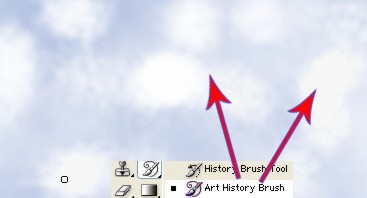
2. First of all select a New Layer, now with the help of Paint Bucket or [ Alt + Backspace ] fill the color code- #9DB4D7, after that use Art History Brush
[ Brush size -20 / Opacity - 6 ], as you can see in the image below.
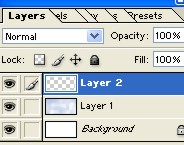
3. Here in the Layer window select a New Layer 'Layer 2'.
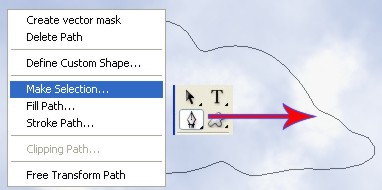
4. Now with the help of pen tool create the cloud shape. now right click > make selection.
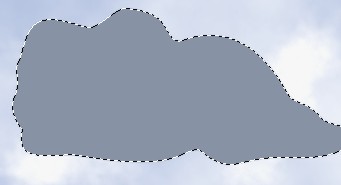
5. Now with the help of ' Paint bucket tool ' or ( Alt + Backspace ) fill the color #[868A9B] , now deselect [ctrl+D].
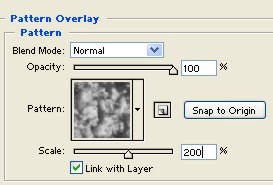
6. In the layer window double click on the Layer 2 ,now in the Layer Style Menu, select Pattern Overlay [ opacity-100 / scale - 200 ] and click ok.
7. Now your image will look like this.
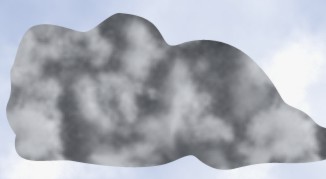
8. Now use ' Smudge tool ' [ Brush size-50 / strength - 45 ] .
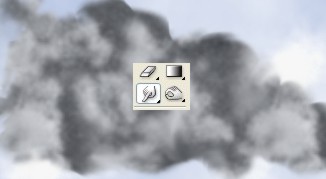
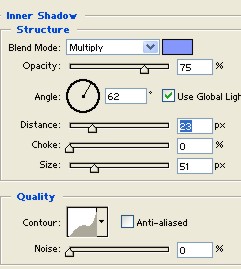
9. Now again double click on Layer 2 , in the' Layer style' select ' Inner Shadow ' [ Opacity - 75 / Distance-23 / Size- 51 ].
10. Now select ' Stroke ' [ size-1 / opacity -11 ], click ok.
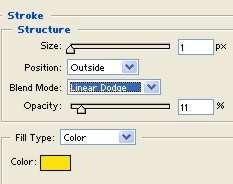
11. Now your image will look like this.
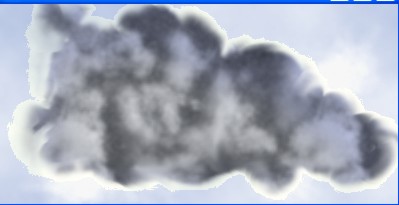
12. Here with the help of ' Dodge tool ' create few zig-zag lines. As you can see in the image below.
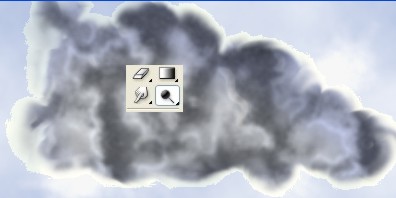
13. Now select 'Layer 1', and use ' Gradient tool '[ radial gradient / mode - normal ].
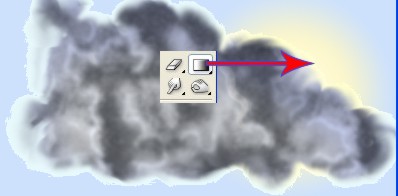
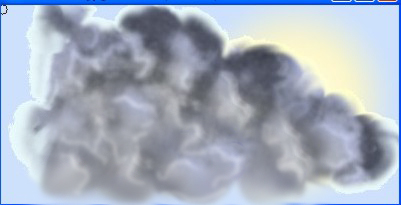
14. This is you final image.