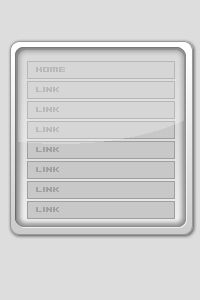
This tutorial assumes you're familiar with Photoshop's/Fireworks's workspace/tools. This tutorial only teaches the concept of how its done. A Macromedia Fireworks source file can be downloaded in the downloads section of this site under the 'fireworks sources' category.
Step 1
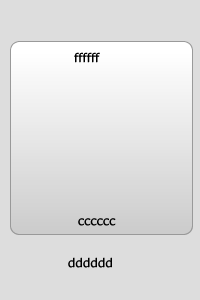
Draw a box. I've set the canvas size to 200X300px, you can set yours as anything you want.

Step 2
Make some modifications to the background, I used #DDDDDD for the background color. Modifications were also made to the rectangle:
- rounded edges
- a gradient has been added (#FFFFFF to #CCCCCC)
- a rectangle outline color of #999999
Step 3
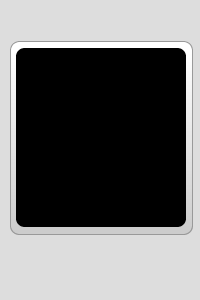
Add another rectangle in the center of the first rectangle. This rectangle can be any size. I've added rounded edges to this rectangle to give it the smooth look.
Step 4
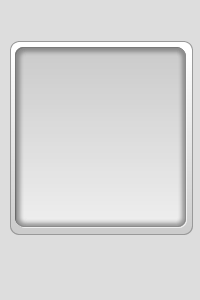
I added a similar gradient to the inner rectangle. The colors of the gradient are #EEEEEE (you can use #FFFFFF too) and #CCCCCC.

Then, add an inner glow (color: #666666) to the inner rectangle with drop shadows of the following:
Black drop shadow - 125degrees, 1px in thickness
White drop shadow - 315 degrees, 1px in thickness
The drop shadows will give the 3D look to the inner rectangle to make it look as if its encaved into the first rectangle.
Step 5
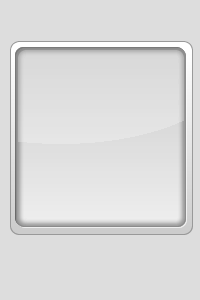
Then, draw another rectangle above the SECOND rectangle and give it a background color of #FFFFFF (white). Then, cut the rectangle into the shape similar to the image below and set its opacity to 30%.
Step 6
This is the final image after some additions.