


1. Open a new document by clicking on File -> New.
2. Type some text in the first layer with name 'Text Layer'. On frame 25 click f6 and then type some other text with some other color on some different position.
3. Click on the first frame of the same layer and press Ctrl + B to break apart the characters and again press Ctrl + B to break apart pixels of characters.
4. Now open up properties panel and find Tween option then select Shape in the tween combo box.
5. On frame 25, repeat step 5 and 6.
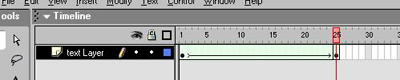
6. The timeline must show the tween in green color as shown in the fig C.T.1.
Note: If you don't want the first text/symbol to appear in last frames, you can do so by simply deleting the first symbol/text in last frames. For further help please also take tour of Danger.
You can download source file here.
