

Step 1: Draw the calculator
Use the rectangle tool (R) to draw a filled rectangle the shape of a calculator. Lock layer 1 by clicking the circle under the lock. Next, insert a new layer. It will automatically be named layer 2.
Step 2: Add text
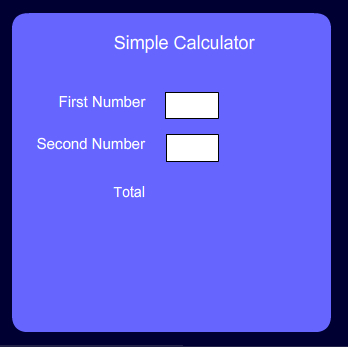
Click in the first frame of layer 2 to select it. Switch to the Text tool (T). Type "Simple Calculator", "First Number", "Second Number", and "Total" on the Stage.
Step 3: Draw input fields
Input fields are used to store information entered by the user. In this step we'll draw two input fields for the user to enter numbers.
With the Text tool still selected choose Input Text in the Properties panel and click the Show border around text button. Select Arial for the font and 18 for the font size. Choose a font color other than white from the color swatch menu.
Click and drag the Text tool on the Stage to draw an input text field. Switch to the Selection tool (V). Select the input field and choose Edit > Duplicate or use the keyboard shortcut Command + D (PC: Control + D). Drag one field to the right of the label "First Number" and the other to the right of the label "Second Number".
Step 4: Add variables
A variable is a container that holds data. When the user enters a number in the input field the data is stored in a variable. In this step we'll give each input field a variable name.
Select the input field next to "First Number". In the Properties panel enter "firstnumber" in the Var field. Next, select the input field next to "Second Number". In the Properties panel enter "secondnumber" in the Var field.

Step 5: Draw a dynamic field
Dynamic text fields are used to display information derived from variables. We'll use a dynamic text field to display the calculator's results.
Select the Text tool (T) and choose Dynamic Text in the Properties panel. Click and drag the Text tool on the Stage to draw a dynamic text field. Switch to the Selection tool (V). In the Properties panel enter "total" in the Var field.

Step 6: Create buttons
We want the calculator to be able to add or subtract. Create two button symbols. Create one button for addition and one button for subtraction. Place both buttons on the Stage.
Step 7: Adding numbers
In this step we'll use the variable names to add the contents of the two input fields and display the results in the dynamic field. Using the term Number in front of the name of each variable tells Flash that the variable's content is a number.
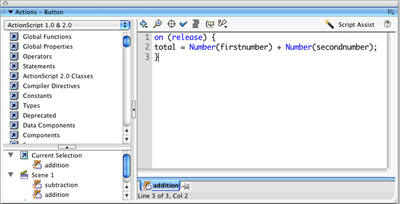
Select the plus button. Open the Actions editor (F9). Enter the following script:
| on (release) {
total = Number(firstnumber) + Number(secondnumber); } |
Step 8: Subtracting numbers
Select the minus button. Open the Actions editor (F9). Enter the following script:
| on (release) {
total = Number(firstnumber) - Number(secondnumber); } |
Step 9: Test the movie
Test the movie by choosing Control > Test movie. Enter numbers in the "First Number" and "Second Number" fields. Click either the plus to add the two numbers or the minus button to subtract the second number from the first. The answer will display in the "Total" field.
And that's it; a quick and simple Flash calculator.
