


Some people find the pen tool to be a fairly hard tool to use. In this tutorial I am going to show you some of the tips+tricks to using the pen tool, as this tool plays an important part in creating images.
The pen tool is sometimes used for selecting certain parts of an image, but is mostly used for creating new images, or parts of an image. You start using the pen tool by selecting a starting point on your image, and then moving on from there. Most of the time you are going to need to close the path once you are finished with the pen tool. This is done by create a point close to your starting point. A little circle will appear by your cursor if you are close enough to the start point to close the path.
Curves
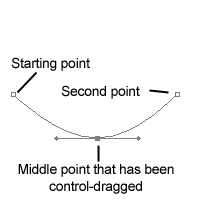
Curves with the pen tool are usually created by making a point somewhere on a line that has already been created. This will allow you to control-drag this point around, hence creating a curve.
Curves - Another Way
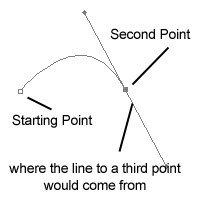
In the above example of how to create curves, if you were to creat a third point, it would create a straight line from the second point to the third point. There is another way of creating curves which would also create a curvy line from the second to third point. You would start by creating your starting point, and then holding down on the mouse button where you would want the second point. This allows you to pivot the way the line comes in from the starting point. The straight line represents where the next line would come from if you were to create a third point.
Making Your Selection
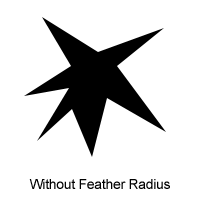
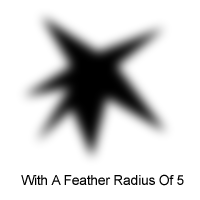
Once you have finished drawing out your selection and have closed the path, you can now create the selection by right clicking (with the pen tool still selected) somewhere around the lines created by the pen tool, and choosing make selection. On the pop-up dialogue you usually just press OK. The feather radius means how much you would like to smooth out the image once you fill it with a color.
Stroking The Path
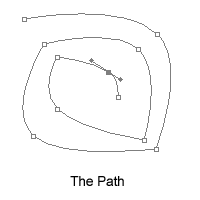
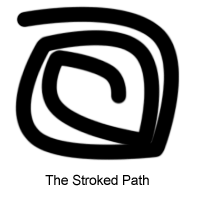
Sometimes you may just want to create a line with the pen tool instead of creating a shape. This can be done by using the stroke path feature. Just create the line that you want, and then right click (while still having the pen tool selected) and choose stroke path. In the dialogue you will be given the choice of which tool you would like to use to stroke the path. You may have to set your preferences for the tool you want to use before you strok the path (Example: setting the paint brush tool to a width of 5 with red as its color). To get rid of the pen tool path after stroking it, to the the paths window( Window > Paths) and delete the work path.
And that's pretty much it to the main techniques for the pen tool. Happy drawing!
