


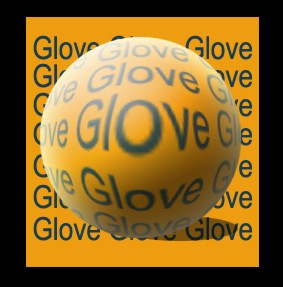
Let's learn how to make new Text effect where I will give text effect to the word glove using Filter > distort > pinch.
1. First of all we have to open a new document. I have use 300px and 300px and fill the background with the Black color.

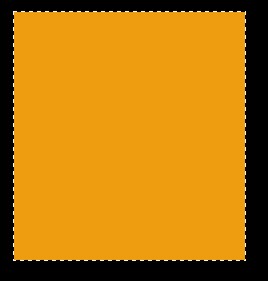
2. Here with the Rectangular Marquee Tool draw a new shape and fill with the color #EE9D11.
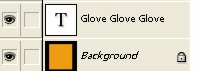
3. Now with the Horizontal Type Tool you can write any Text, as you can see in the image below.
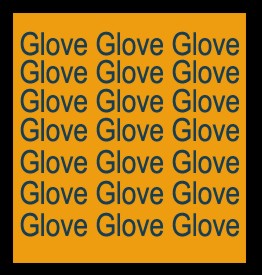
4. Now go to the Layer and click on Merge Down. Now the Text and the background will be Merge.
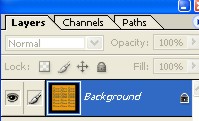
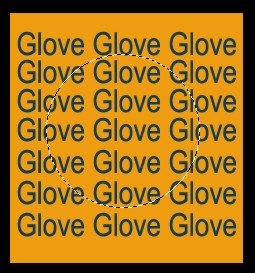
5. Now with the Elliptical Marquee Tool draw a circle. Now go to Edit > Copy > click on Paste as you can see below.
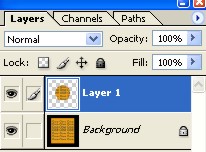
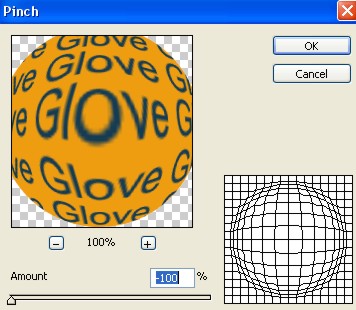
6. Now go to Filter > Distort > click on Pinch. see below for the effect.
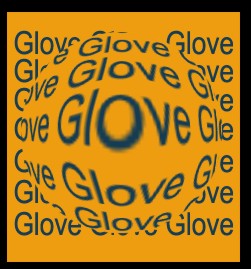
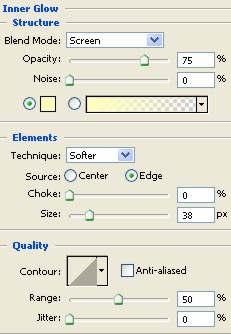
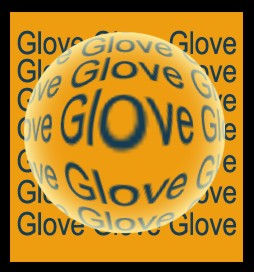
7. Now Double click on the Layer > Layer Style > click on Inner Glow and give Effects as shown in the following figures.
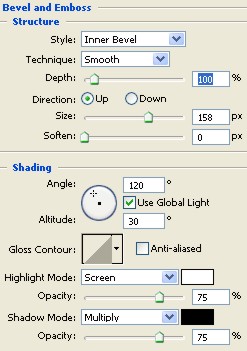
8. Here again Layer style > click on Bevel and Emboss and give a little more Effects as shown in the image below.
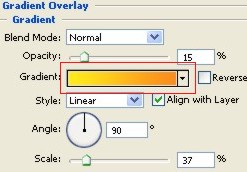
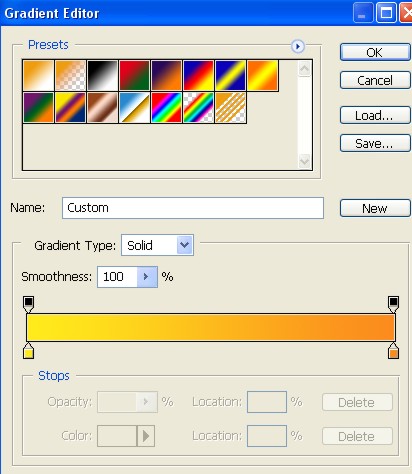
9. Now again go to Layer Style > click on Gradient Overlay > now change the color of Gradient and Press ok.
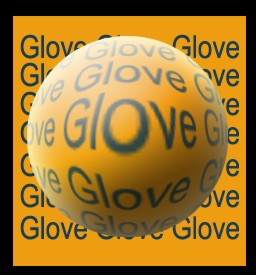
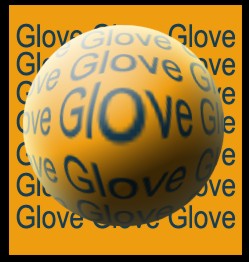
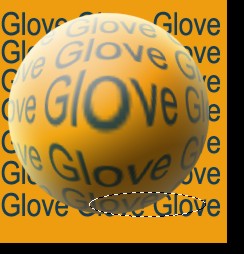
10. Here with the Elliptical Marquee Tool draw a new circle, fill it with the color. Now the image will look like this.
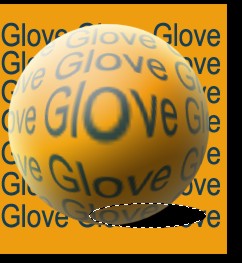
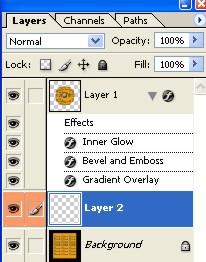
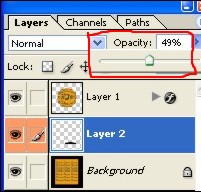
11. Now Make the Opacity of Layer2 equal to 49%.
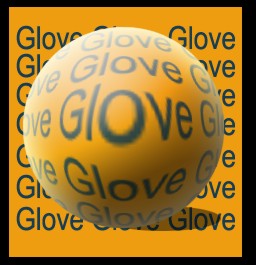
12. Final image.
