

Today we are going to give a new effect to the text in photoshop. So let's start

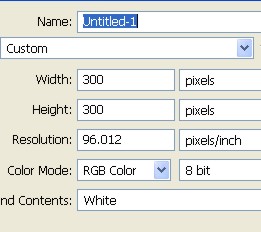
1. First of all open a new document. Here I have used document size width-300 and height -300 and resolution 96.
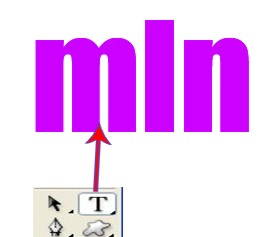
2. Type any word with the Text Tool.
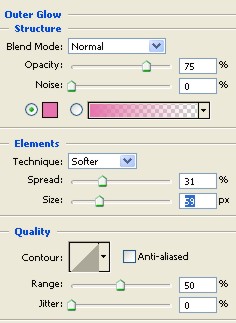
3. Press ctrl+J to make a copy of the Text Layer > now Double click on Text Layer for Layer Style > select Outer Glow.
Choose structure, Element and Quality settings as shown in the Image below.
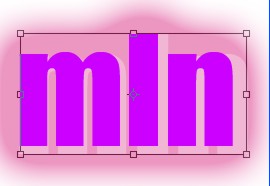
4. Now here again press ctrl+J then press ctrl+T and with the help of mouse make the Text wider by stretching it.
Press Enter when done.
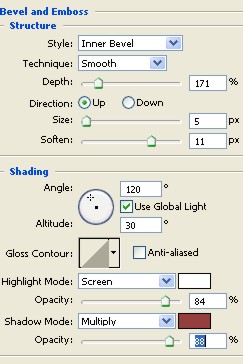
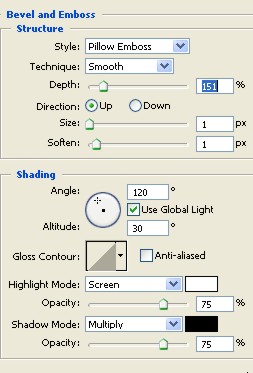
5. Now select Bevel and Emboss. Set Structure and Shading according to the image below.
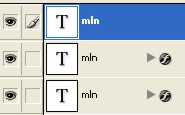
6. Now with the help of Mouse drag the Text Layer that we first created and put on top.
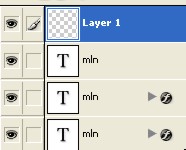
7. Select a new layer.
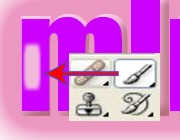
8. Here with the Brush Tool draw line as shown below on Letter M ,L and N.
9. Now Double click on Layer1 > select Bevel and Emboss. Set structure and Shading as shown below.
Use Style = Pillow emboss.
Technique = Smooth.
10. Final Image
