


Step 1
Open your desired image in Photoshop (CS or CS2) , Then go to your layer palette and click channels (in the top)
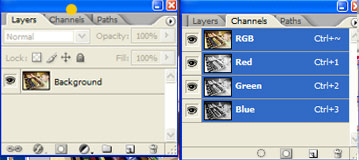
At the bottom of this channel palette there is an icon named "create new channel" it is a square icon with the shape of a folded sheet , Click it
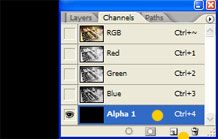
The Alpha 1 layer will be added and your image will turn into black cause the RRB channel is not selected anymore , So select visualize the RGB
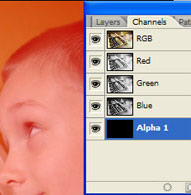
Step 2 Create a gradient
Now we have our image under this red layer , the red means the area of the new " alpha 1 layer " and it also means the area the will not be affected by the blur lens effect . So next we need to add a gradient to erase part of the alpha channel and to get our blur area
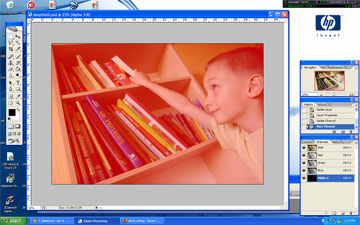
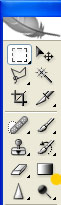
So activate your gradient tool in the tool panel and your make a gradient
The gradient start point has be over 20 % inside your focused desired object , and the end pont is edge of your pic.
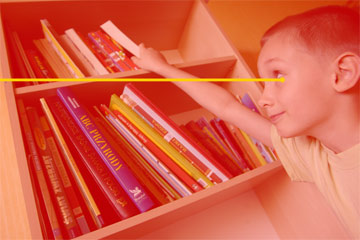
it should look like this

Step 3Add Lens Blur Filter to the Background Layer
a) First you have to turn off he visibility of the "alpha 1 layer " and select the RGB channel , then go to your layers palette , and select the Background Layer
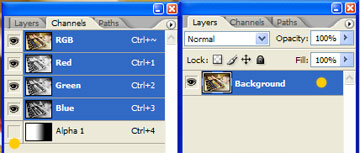
b) Next open the Lens Blur Filter panel ( Filter / Blur / Lens Bur )
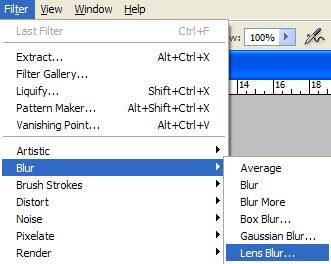
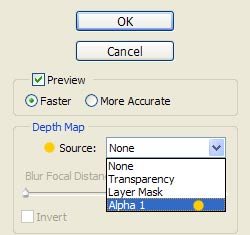
In this panel select "alpha 1" in the source box ,this is the name of the layer we have just created , if you named the layer differently it will appear as you named it
Now play with the radius scale to add the desired lens blur to your image .
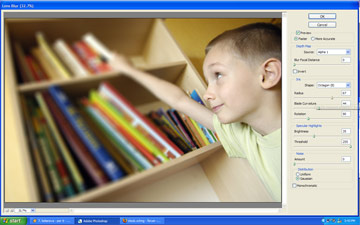
If you want to invert the blur click the invert box
Note : if you see a black and white gradient instead of your image , it is because you , didn't select the background layer or because you didn't deselect the channel layer we created . In case this happened , click cancel and repeat step 3

We've finished click okay and that was all !!!
