We'll create a pop art design using an image of the singer shown below.
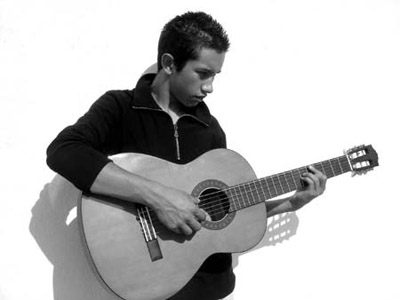
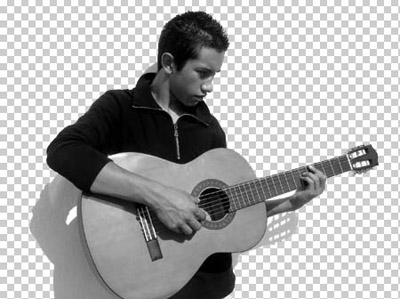
Create boy selection using lasso tool press Ctrl+Shift+I to inverse the selection. Press delete to remove the outer area. Now duplicate the boy layer twice.
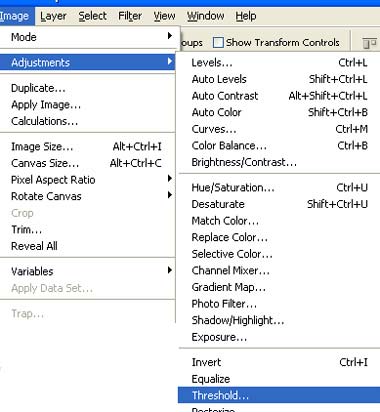
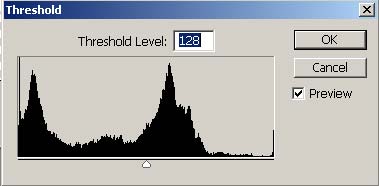
Select top layer. From image menu select adjustments>>threshold.
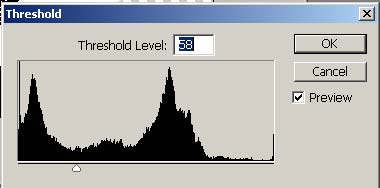
Apply settings as shown.
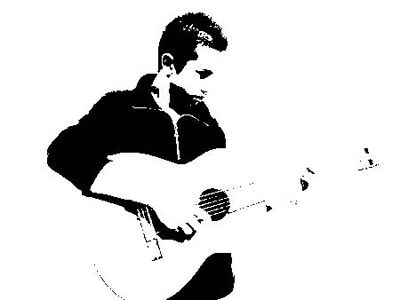
Since the guitar of the boy is white color we can't see much effect in guitar area. For that we'll remove the guitar area from this layer and apply threshold again on the layer below. Create selection of the boy's guitar using lasso tool.
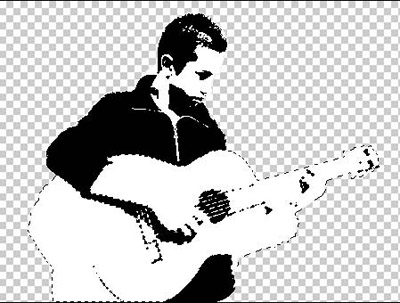
Press delete to remove guitar area.
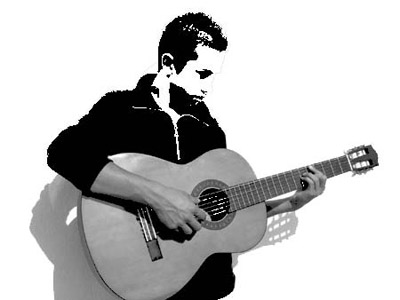
Select the second layer from top. From image select adjustments>>threshold. Apply settings as shown.
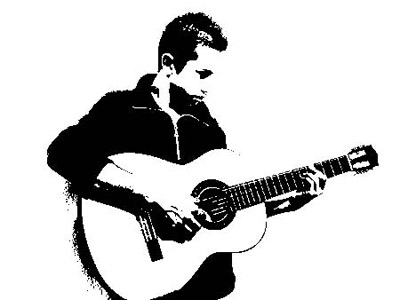
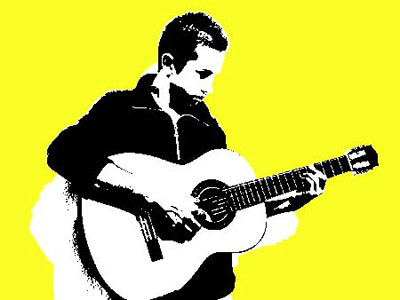
Fill the background with yellow color.
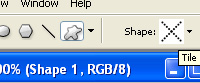
Hide the boy layers. Draw tile shape using custom shapes.

Duplicate this layer many times. Scale and rotate randomly.
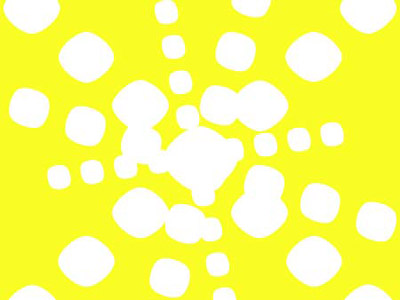
Unhide the boy layers.
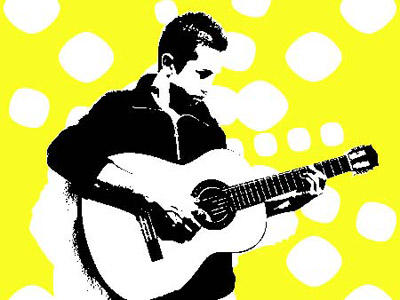
Fill the tile layers with different colors.
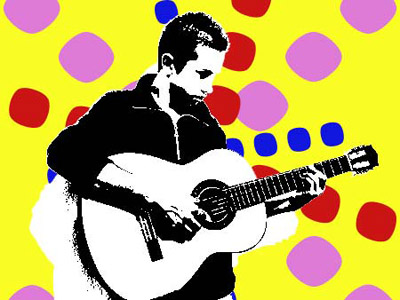
Play around with the layer modes of the different tile layers to get an interesting background effect.
