Step 1:
Choose the photo that you want to use for the Glowing Plastic Wall Photo Montage, try to find one with a solid background color like ours, the effect will look much better and the process will be much easier, keep in mind that the final result will depend on the Background color, so try to find a light/brilliant one like ours.

Step 2:
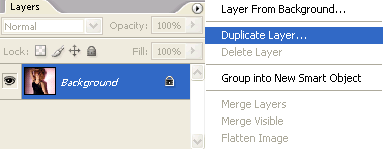
Make right click in your background layer.and choose the "Duplicate layer" option.
Step 3:
Go to Window and select "Styles" (If you already have it in your workspace just ignore this step)
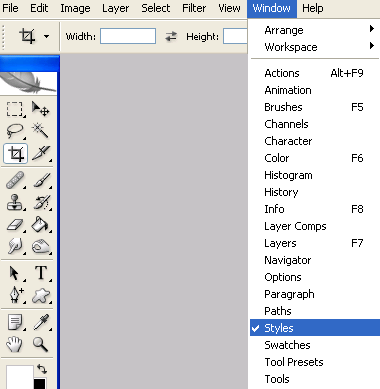
Make click in the little arrow.And select "Image Effects".
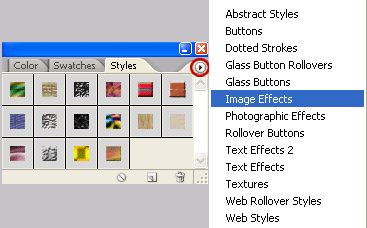
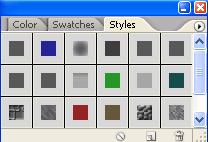
Now your Styles window should be looking like this:
Step 4:
Now pick the PUZZLE style.
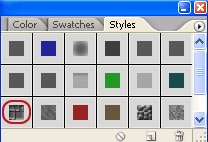
The puzzle pieces size will depend on the size of your photo. Don't worry about the size yet cause we are going to change it anyway.
Right click in your duplicated layer. Choose Blending Option.
Ok so now click on the Texture options, and adjust the size and scale of the effect trying to copy our effect. We can't give any values cause the size/depth depends directly on the size of the photo. It's quite easy anyway, just get something similar to our result.
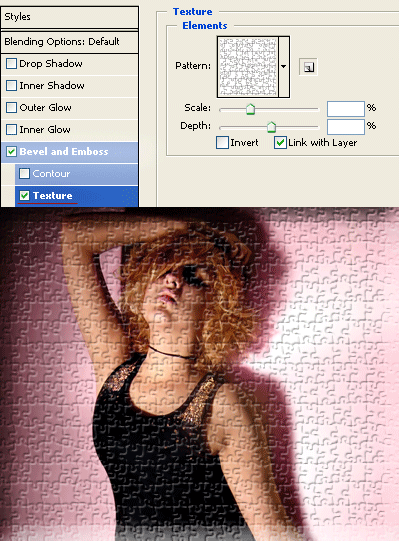
Step 5:
Press Ctrl + Shift + N (new layer), now select your new layer and the duplicated one (holding Ctrl to select them together), Right Click and select "Merge Layers".
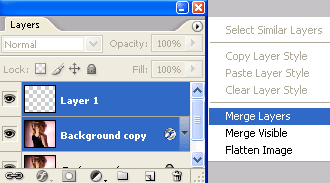
Step 6:
Select your Eraser Tool.

And Erase inside the character or object in the photo, just leave the background, remember that you need to be carefully in this Step.
Alright! Now it will look like this:

Step 7:
Go to Filter - Filter Gallery.and choose "Plastic Warp".
Note: once again you'll have to change the settings by your own cause in every photo the effect will look different because the size, illumination, colors, etc.
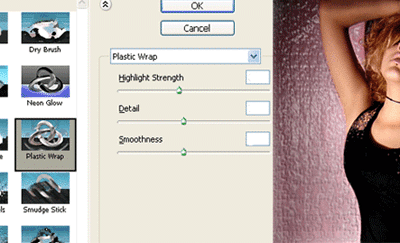
Try to get a similar result:

Now duplicate your new layer, the one with the effect.
Make click holding Ctrl in the layer's icon to select the shape of it:
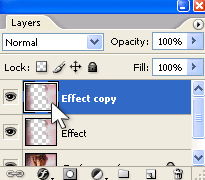

Step 8:
Select two colors, a light one for your Foreground and Black for your Background, we have chosen this nice pink (#f1f1f1).

Go to Filter - Render - Clouds.
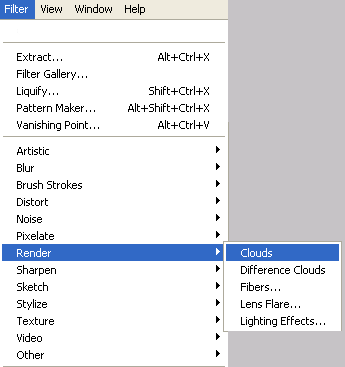

Now press Ctrl + D (Deselect)
Step 9:
Select your new layer with the clouds effect and change the Blending Mode to "Overlay"
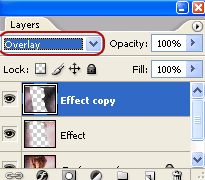
And Voila! Cool isn't it? Have fun with your new Glowing Plastic Wall Photo Montage!