

Hello Photoshop maniacs, today we are going to make a very fancy and Fashion Gold Skin / Silver Background, this effect is very common on Fashion-Like things as Perfumes spots, Make Up commercials, etc.
Step 1:
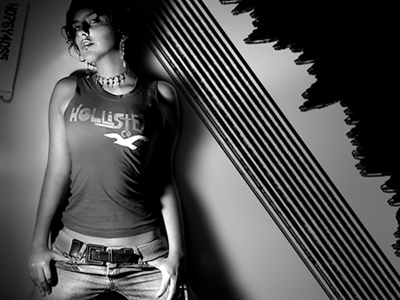
First of all we need a Black & White photo, so choose a one of yours, or just pick a color photo and, Image - Adjustments - Desaturate. For more info about Photo Toning just visit this tutorial.
Step 2:
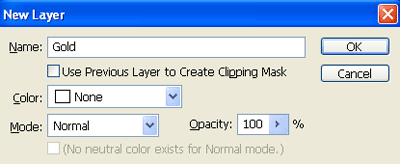
Press Ctrl + Shift + N (to make a new layer) call it "gold".
Step 3:
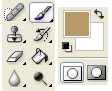
Select your Brush Tool and choose a nice Light Brown AKA Gold color as your Foreground color, we are using this nice one #b99a66.
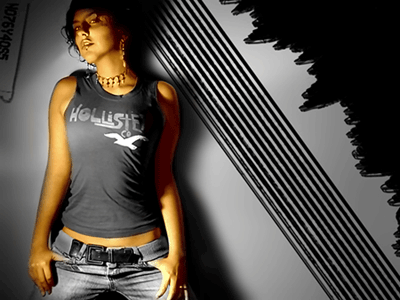
Now, in your new gold layer, fill the character's skin like this, be carefully to not fill the Hair/Clothes/Background.
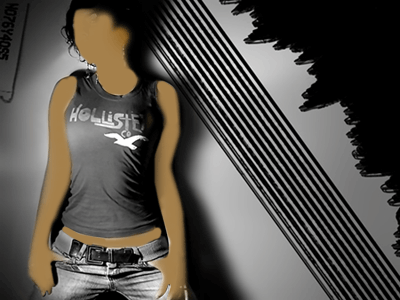
We are going to change the Blending Mode and Opacity:
Blending Mode: Linear Light.
Opacity: 85%
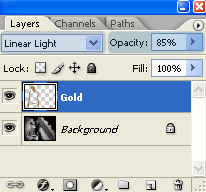
It will look something like this:
Step 4:
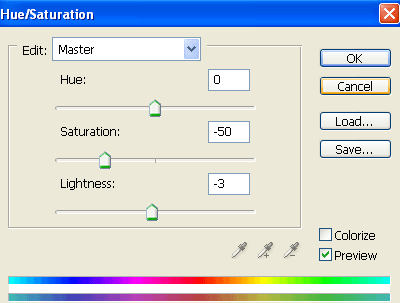
By now the Gold Skin is looking brilliant and fake, we need to tweak a little the overall colors, for that press Ctrl + Shift + E (Merge Layers) and now press Ctrl + U (Hue/Saturation), and get the following values, keep in mid that you can always tweak the photo colors to your own taste, so this settings are just a refence.
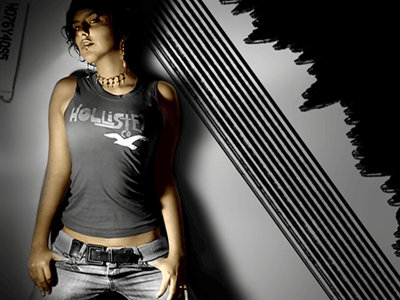
Now the overall Fashion Gold Skin / Silver Background effect is almost done:
Step 5:
Select your Dodge Tool.

And make some highlights in the lighter parts of your photo to make it more dramatic.
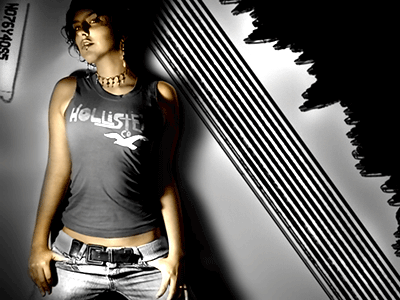
And that's all! have fun with your brand new Fashion Gold Skin / Silver Background photo effect.
