


What's up Folks! Today we're going to make a sexy and easy Kiss Montage.
For this tutorial you'll need a Kiss Brush Pack, you can download it here!
If you don't know how to install a brush follow this steps:
Loading Brush:
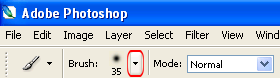
Now that you have download the Brush and placed it in your chosen directory just select your Brush Tool.

Then click on the down arrow on the Brush Options bar...
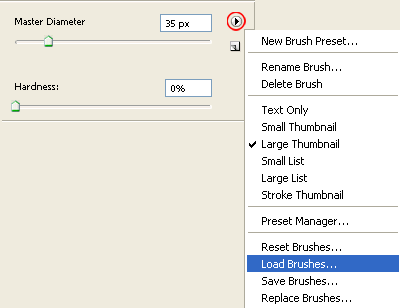
Now click the little right arrow and select the Load Brushes Option, and now just browse for your Brush on your Hard Drive.
Now you can start with the Kiss Montage.
Step 1:
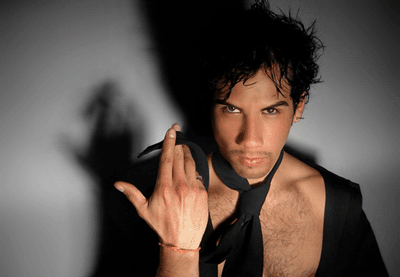
Choose the photo you want to use, any size, quality, background, etc; just try to get a sexy nice looking photo.
Step 2:
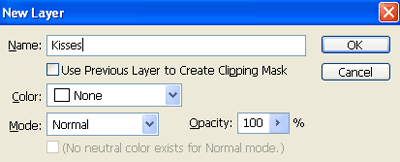
Press Ctrl + Shift + N (to make a new layer) call it "kisses"
Step 3:
Now Select your Brush tool:

And choose one brush of the kiss brushes pack that you've download, now change the master diameter to make it fit in the character and look real:
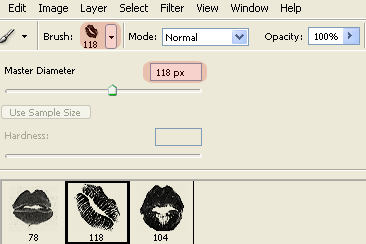
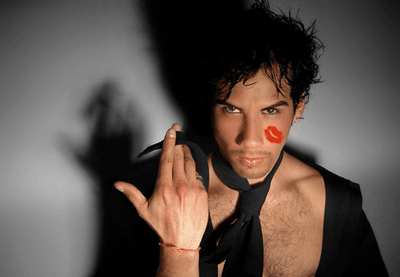
We are using a intense red #d61e00 color.
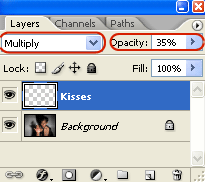
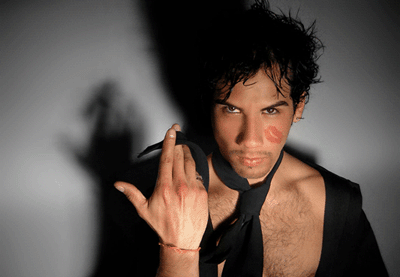
Now change your kisses layer blending mode and Opacity, choose: Multiply, and 35%.
Step 4:
Press Ctrl + T (Free transform) and modify the kiss to make it fit as you want:
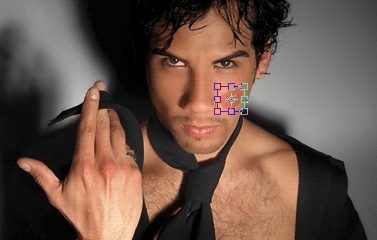
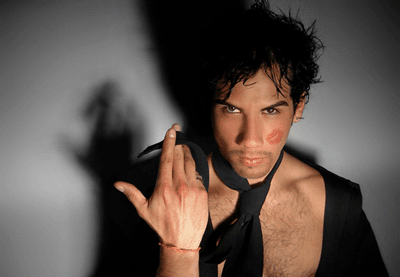
Like it? Now that you have learned the way to do it, you can insert all the Kisses that you want.
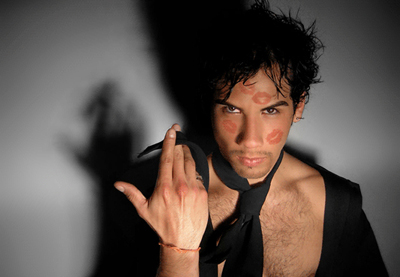
(we use the other kiss brush of the pack)
This is very useful for Fashion Sexy photos, hope you like it.
