

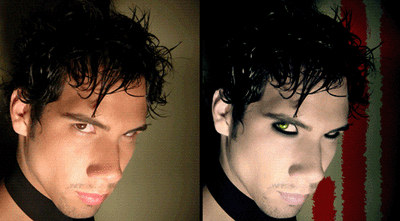
Hello, today we got something for all the punk rockers! we're going to make the Billie Joe Armstrong from Green Day Make Up.
Step 1:
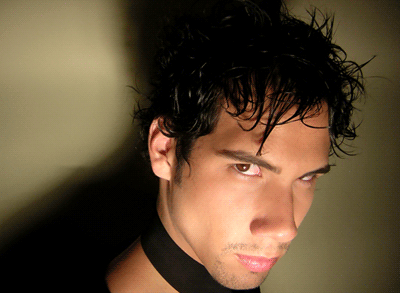
Choose the photo you want to use, the size or quality doesn't matter in this tutorial.
Step 2:
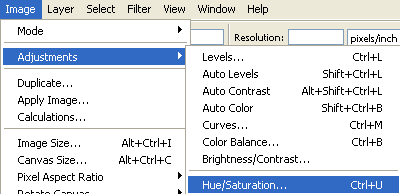
Go to Image > Adjustments > Hue / Saturation (or press Ctrl +U)
Step 3:
Modify the settings like the screenshot:
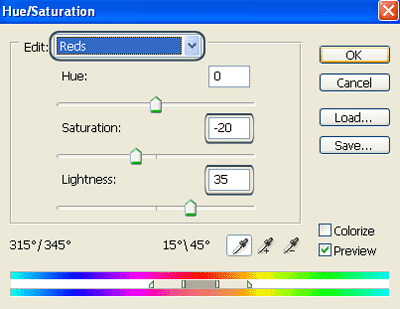
Or until the skin turns like this:
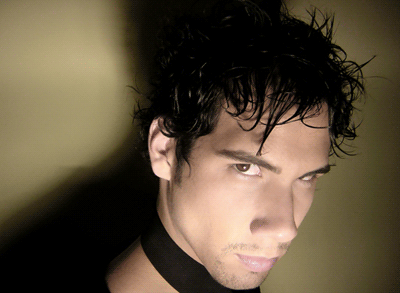
Step 4:
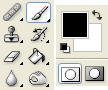
Now, select your brush tool with black foreground (#000000).
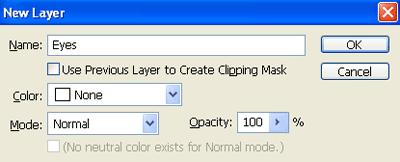
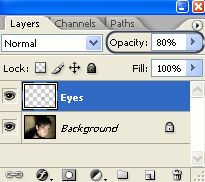
Press Ctrl + Shift + N ( to make a new layer ) call it "Eyes"
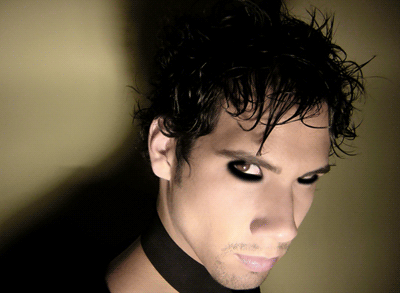
Now in your new layer paint the eyes like in the screenshot, remember to change the master diameter to make it fit into the eye - other way it will look estrange.
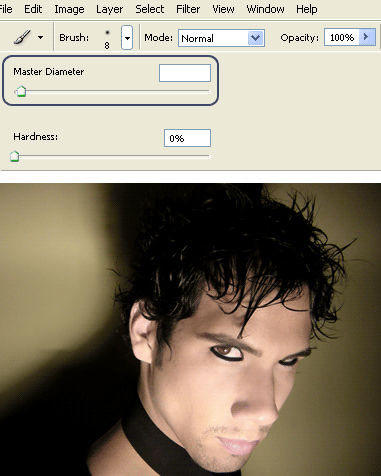
Now change your layer's opacity to: 80%
Step 5:
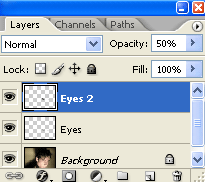
Make a new layer again (Ctrl + Shift + N) call it "Eyes 2"
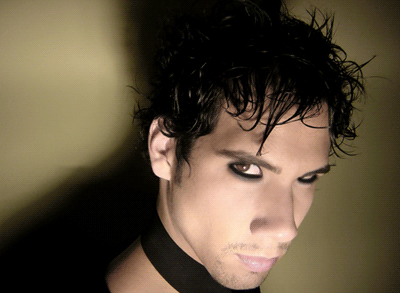
Make your brush master diameter a little bit bigger, and fill again the eyes - like this:
Change the opacity to 50%.
So now, we got this:
Step 6:
Pick the Dodge Tool, for Range select Highlights and for exposure 50%.
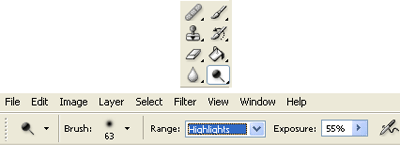
Now make some highlights in the hair to get a wet effect:
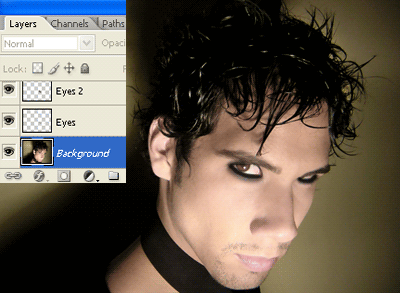
Step 7:
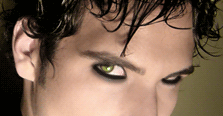
Now, if your photo have light green eyes ignore this step, or make it lighter.
Make a new layer (Ctrl + Shift + N) call it Eye color.
Paint the eyes with a green color, we are using # 3b7d2d
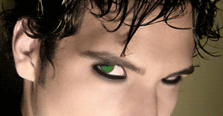
Now change the blending mode to: Color Dodge
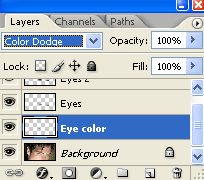
Alright! It will look like this:
Step 8:
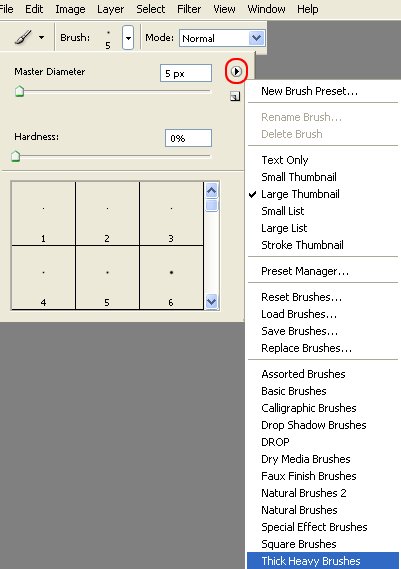
In your brush tool menu, click the little arrow and choose the Thick Heavy Brushes:
Once you have the brushes choose the Rough Round Bristle.
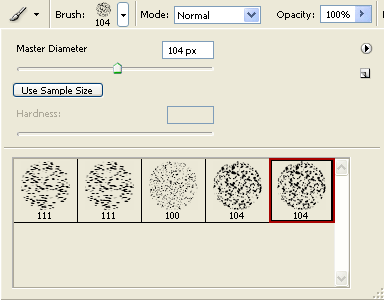
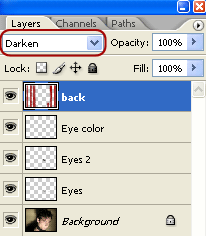
Now make a new layer (Ctrl + Shift + N) call it back.
Choose a red color, we use # a50605, and make something like this:
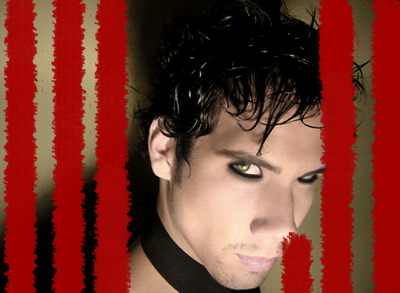
Change the blending mode to: Darken
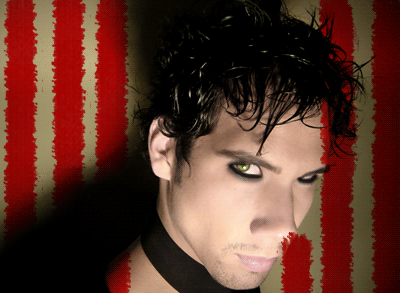
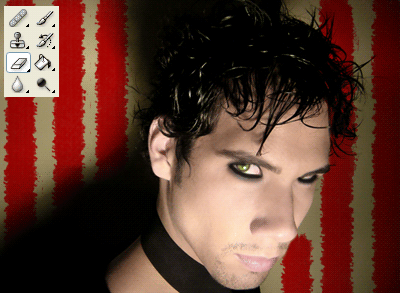
Now with the eraser tool, erase all the photo character.
Step 9:
Now, if you want the colors more like a green day photo.
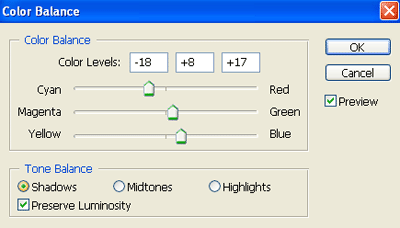
Press Ctrl +Shift + E (to merge the layers) now press Ctrl + B (or go to image ? adjustments- color balance)
This settings are just a reference, just try to make a similar result.
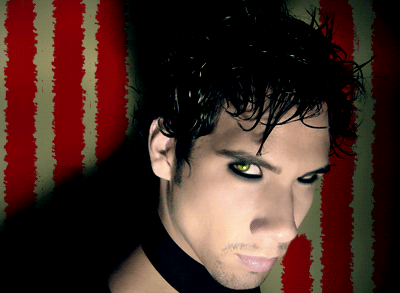
And finally we're done, hope you like the Billie Joe Armstrong from Green Day Make Up.
