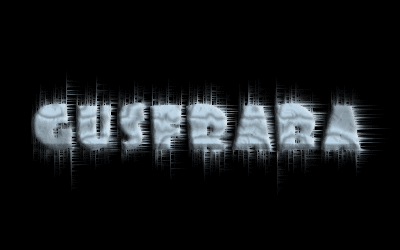
Hello! We are going to create some nice Melting Snow Text today, hope you'll like it.
Step 1:
Make a new 400x250 pixels document, in this tutorial size is not a big issue, but try to keep it big.
Step 2:
Select your Paint Bucket Tool under your Tool's bar and fill the Background with Black color...

Step 3:
Now type the text that you want to look like Melting Snow, we are using here a nice rounded font called "Foo", you can get it for free here! (The first one on the list).
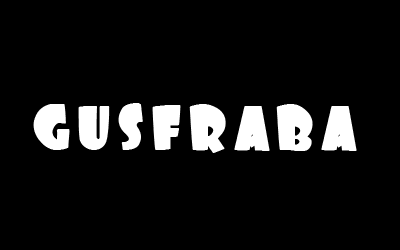
Step 4:
Now go to Filter - Stylize - Wind... (Probably you WILL have to Rasterize your layer first).
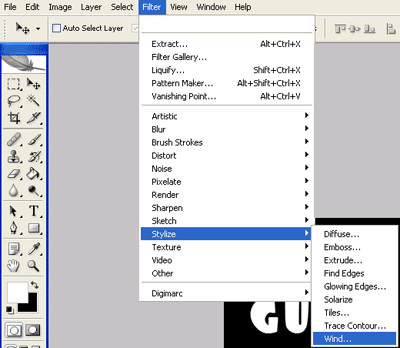
Introduce the right settings on the Wind menu, just like our screen cap.
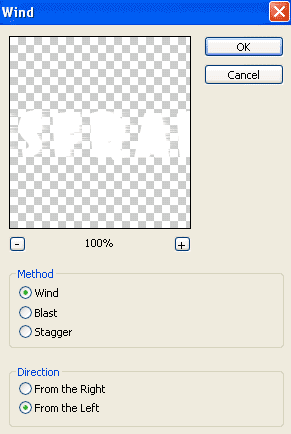
Step 5:
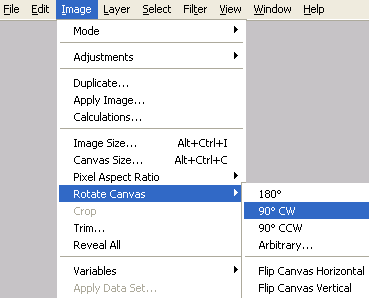
Now go to Image - Rotate Canvas - 90 CW...
Step 6:
Now Repeat Step 4 with the exact same settings.
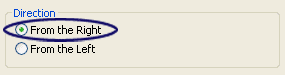
And now repeat it once again BUT, change the direction on the Wind window, just like the example:
Step 7:
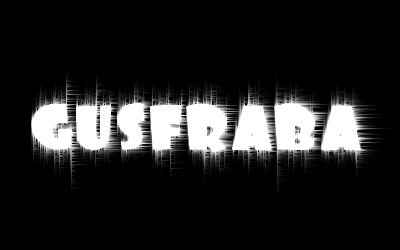
Now let's put the text straight again, go to Image - Rotate Canvas - 90 CCW
Now your text is looking great:
Step 8:
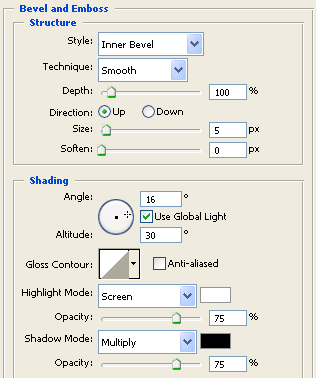
Right click your text layer and select the Blending Options.
We are going to use here Bevel and Emboss, Texture, Satin and Color Overlay.
Bevel And Emboss
Texture:
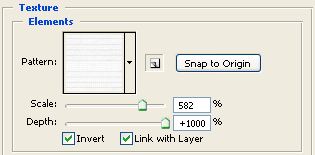
We are using a Pattern called Notebook, if you can't find it and don't know how to load it ...
Click on the Pattern menu and select the little right arrow:

Select the Color Paper option and there is your Notebook Pattern now.
Satin:
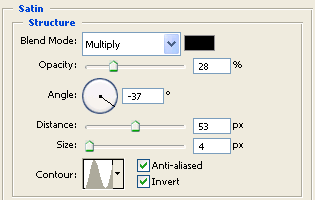
Color Overlay:
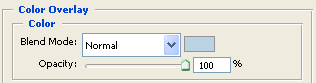
Finally your Melting Snow Text is DONE and looking great!