

Hello everybody we are going to create a Pirate Flag for any kind of design you want.
Step 1:
Make a new 400x250 pixels white Background document.
Step 2:
Select your Rectangle Tool...

And draw a nice black rectangle inside your new document:

Step 3:
This is the cool part; we are going to use the Free Transform option, so our rectangle is going to look like a flag.
Press CTRL + T (Free Transform) and right click your rectangle and select the Warp option.
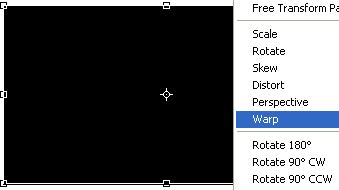
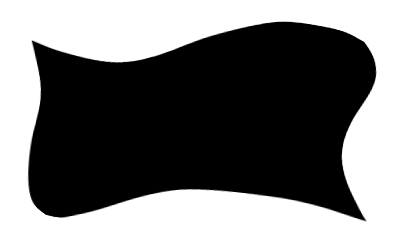
Now play a little with the different shapes you can do, we have this result:
It does look like a waving flag uh?
Step 4:
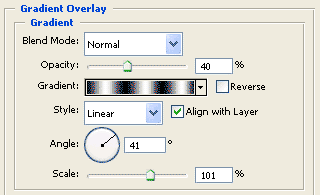
Let's make it waves, Double Click on your Flag layer; we are going to put the Blending Options settings.
Gradient Overlay: Put the following values.
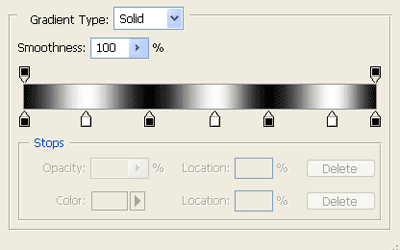
Now click on the gradient, and make one like ours, the color we are using are Black (000000) and white (ffffff).
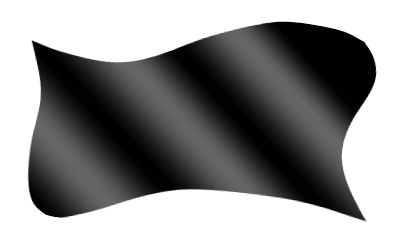
Now this is your new waving flag:
Step 5:
Now, we are making a Pirate Flag, so where is the skull?
Making a skull is a whole new process so we are going to use a stock Brush skull, don't have one? DON'T WORRY! you can get it for free here!

Finally your Pirate Flag is done and waving!
