Hey hey today we are going to create a very cool High Tech Toxic Header, it's pretty easy and we are going to work just with Shapes and Blending Mode options, are you ready?
Step 1:
Alright create a new Black Background 650x200 pixels document, note that screen caps of the whole header here are scaled down, because of the site format.
Step 2:
Select your Ellipse Tool under the Tool's bar, usually in your left side of the screen.

Then draw a perfect circle in your document, hold Shift while you are making it so it will be symmetrical.

Now rename (double click on the layer's name) your new circle layer, call it "Circle"
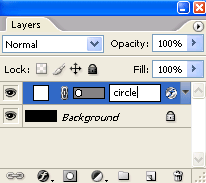
Step 3:
Now Right click your "Circle" layer, and select the Blending Options...
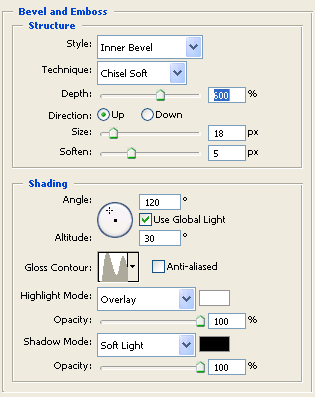
We are going to use just Bevel and Emboss and Gradient Overlay, watch carefully the screen caps and get all the values right.
Bevel and Emboss:
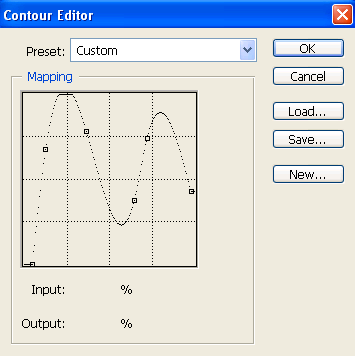
Now click in the "Gloss Contour" icon inside the Bevel and Emboss options and create a similar curve:
Gradient Overlay:
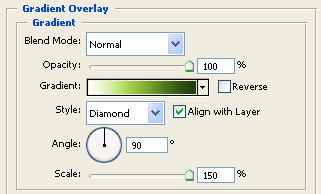
Now Double Click on the Gradient color, and make a nice one like ours.
We are using three colors here, a full white (ffffff), a light green (a7d051) and a dark green (153902)
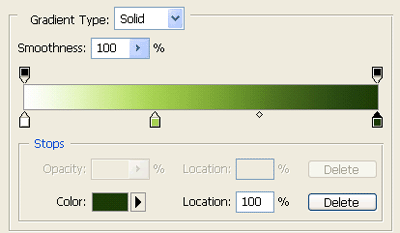
Now your circle style is ready, and is looking great isn't it?

Step 4:
Now select your Custom Shape Tool on the Tool's bar...

And in the Shape menu (top bar), select the Nuclear shape.

Note: If you don't find the world shape and don't know how to load it just click on the Shape menu and select the little right arrow:

And select the option "All"; now it's there.
Step 5:
Now draw the Nuclear shape on your circle like this, to make it symmetrical just hold Shift while you are drawing it.

Now rename this layer (double click on the layer's name) and name it "Nuclear", and now Right Click it and select the Blending Options.
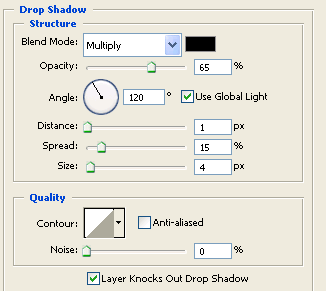
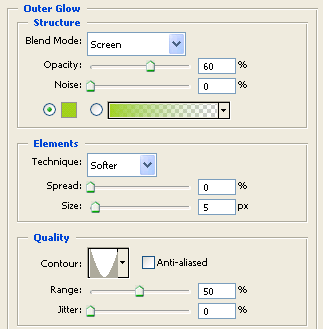
Now we are going to use Drop Shadow, Outer Glow and Bevel And Emboss:
Drop Shadow:
Outer Glow:
Bevel and Emboss:
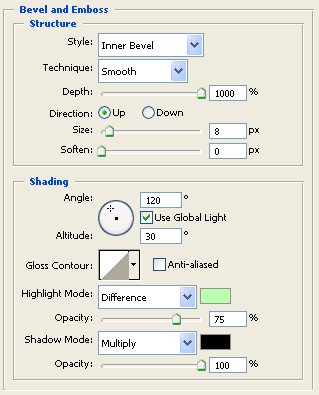
Now your image is going to look like this:

Step 6:
Now we are going to introduce the text, so select your Horizontal Type Tool under your Tool's bar.

Now type the text that you want, we are using an awesome High Tech font called "DS Digital", you can get it -of course for free- here!

Step 7:
Now Right Click on your Text layer and once again choose the Blending Options...
For the text we are going to use just Bevel And Emboss and Gradient Overlay...
Bevel and Emboss:
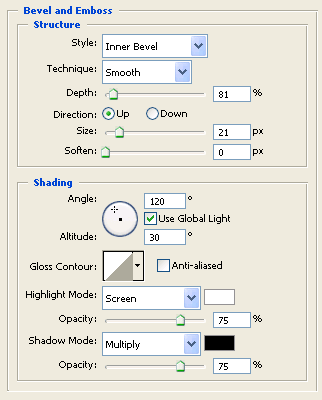
Gradient Overlay:
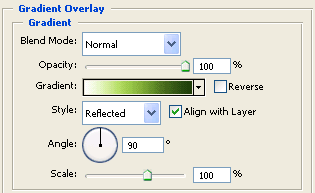
The Gradient color that we are using is the same as the circle one, but this time the Style setting is Reflected.
In case that you don't remember the Gradient Color:
From Step 3: "We are using three colors here, a full white (ffffff), a light green (a7d051) and a dark green (153902)
And you header is looking GREAT so far uh?

Step 8:
Now for the final touch of your High Tech Toxic Header select once again the Nuclear Custom Shape, and draw it like this:
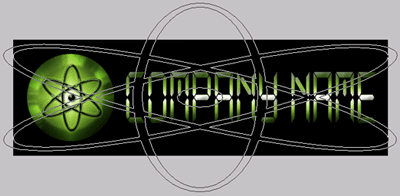
Now Right Click on your new layer and go again to the Blending Options, we a re going to use just a quick Gradient Overlay:
Gradient Overlay:
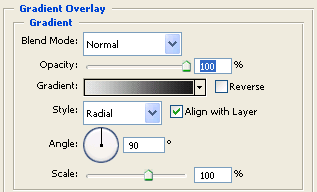
Click on your Gradient color and make one similar to ours:
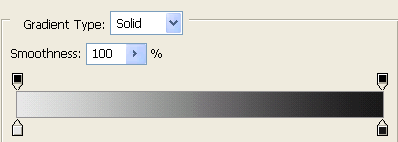
We are using a light grey (e8e8e8) and a dark one (111111).
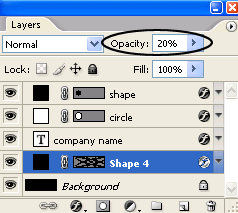
Now move your new Shape layer to the bottom of the layers, just above of the Background one and put the Opacity value on 20%
And it's voila! your High Tech Toxic Header it's DONE! enjoy it.