On a new uncolored background with the dimensions 500x400, 72dpi create the next picture using the tool
 :
:
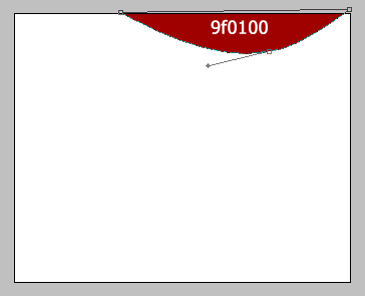
For your convenience are indicated the color code. Keep using the same instrument, we'll create the next picture:
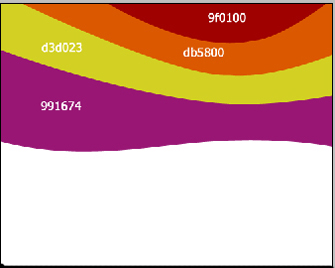
…and more:
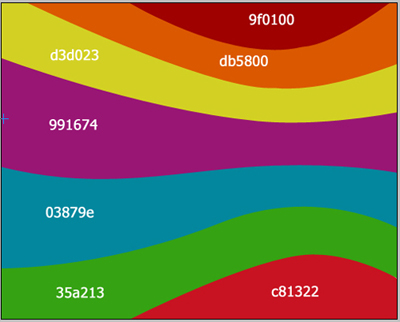
In this way we got a colored picture:
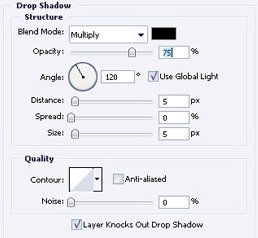
We'll add some extra-effects using instruments Blending options, the function Drop Shadow.
…and we got:
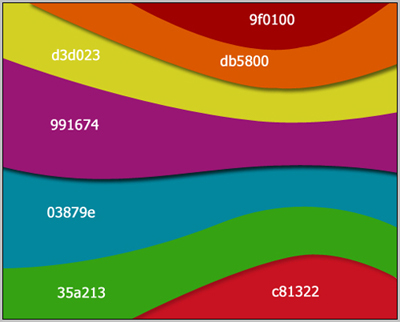
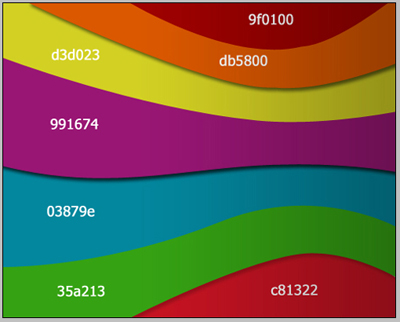
We'll black out the right picture's edge choosing the instrument Gradient tool
 and we got the next picture:
After that we'll take the girl's picture and cut out the background using the instrument
 :
:
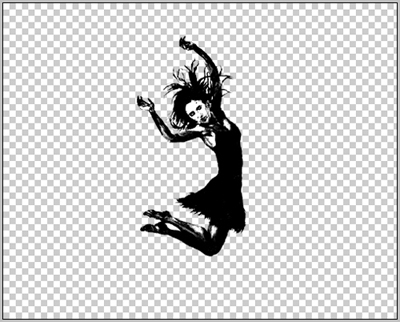
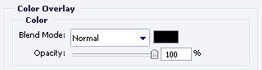
Then, on the same file with the right button of the mouse choose Blending options. Choose Colour Overlay and set out the black colour:
Now the girl became a silhouette:
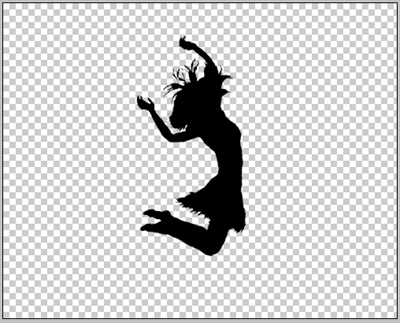
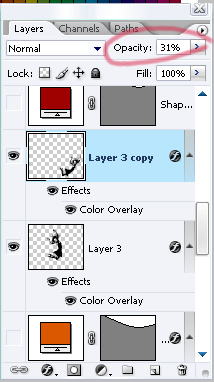
We have to add only the girl's shadow. We'll copy the girl's background and the copy we'll transform using the function Free Transform provoked by the right mouse's button. Move the shadow on a short distance and on the shadow's background we'll change the opacity like this:
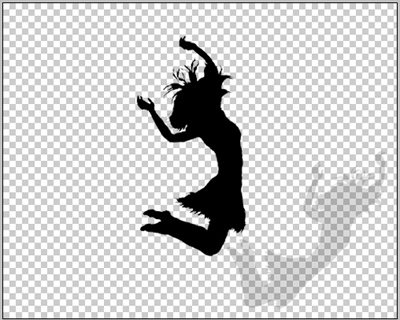
Put through everything together and we got the next picture: