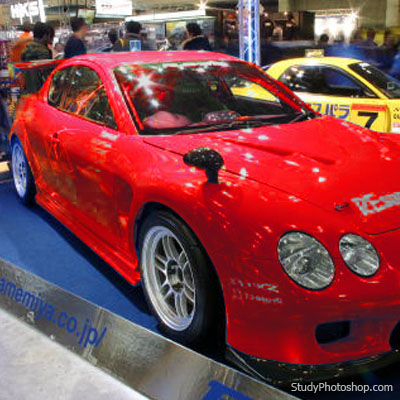
1. Open your photo [Ctrl+O]
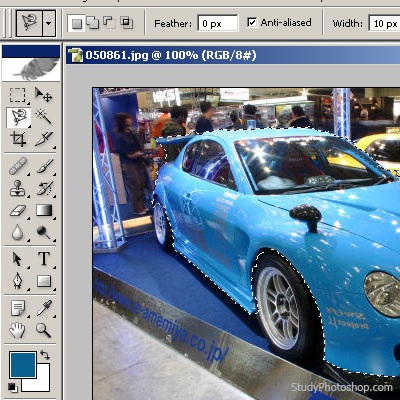
2. Choose "Magnetic Lasso Tool" and select the object
3. Choose Image > Adjustments > Replace Colour. Top side of the settings panel is the colour before changes, bottom side - colour after changes. If some parts haven't got into the change area - use "Add to Sample" tool.
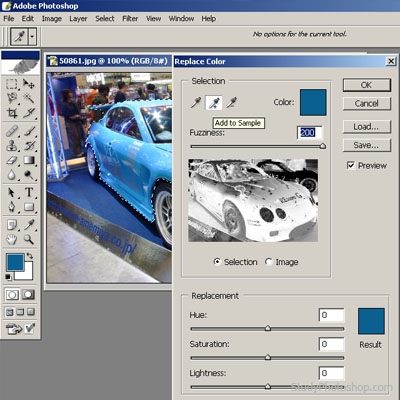
4. As the result at 'Photo Preview' the object should be white, and just after that in the bottom side of the settings panel you should choose the necessary colour.
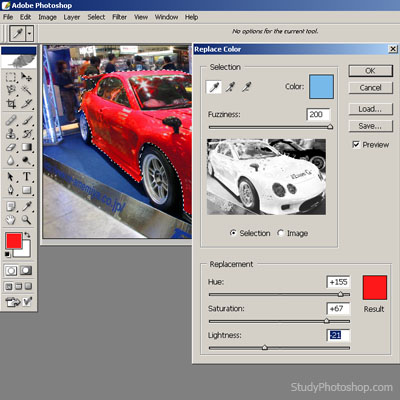
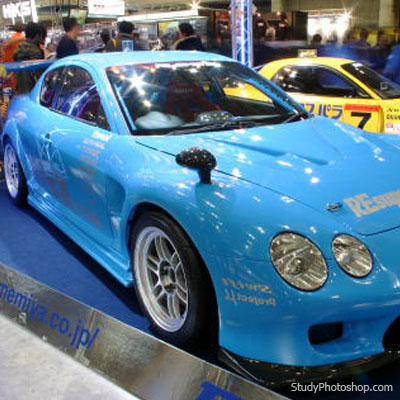
5. Remove the selection [Ctrl+D], and that's it!