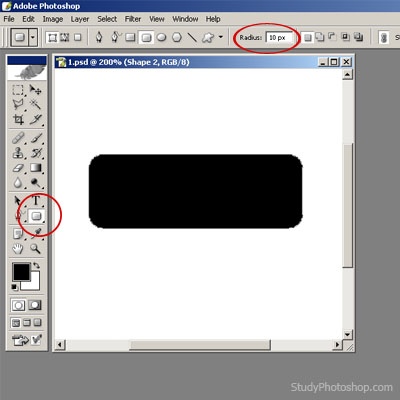
1. Create new file (Ctrl+N). Use "rounded rectangle tool"
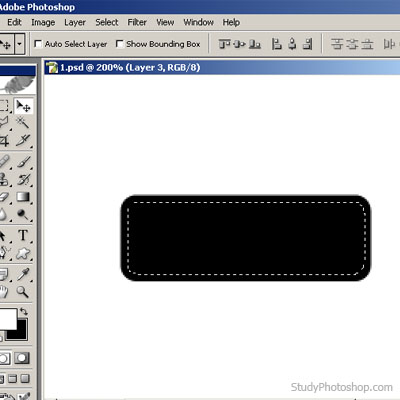
2. Hold [Shift] on Layer1 and use: Select => Modify => Contract => 4px
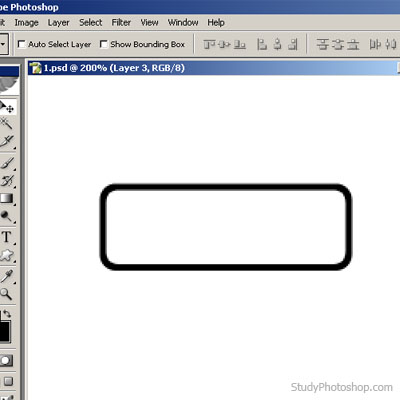
3. Create new layer (Ctrl+N) and fill it with white colour
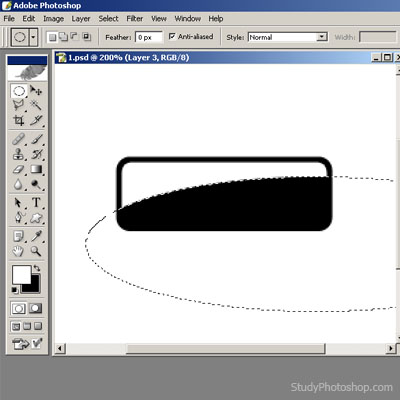
4. Choose "elliptical marquee tool", make a selection and press [DEL]
5. Use: Layer => Layer Style => Gradient Overlay (and use Settings)
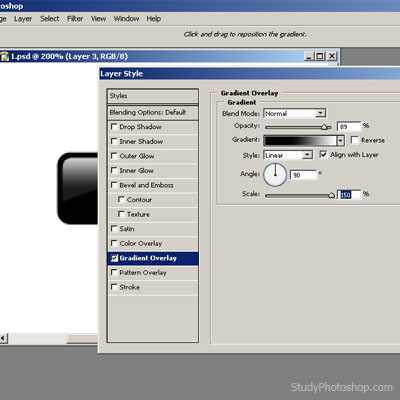
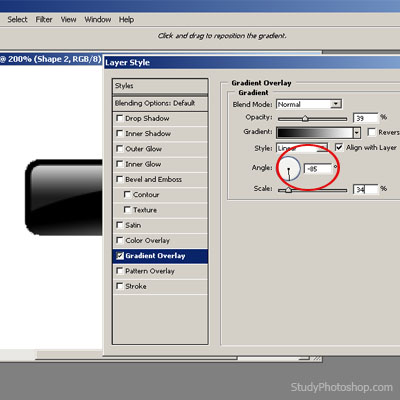
6. Now use with Layer1 (main): Layer => Layer Style => Gradient Overlay (and use Settings)
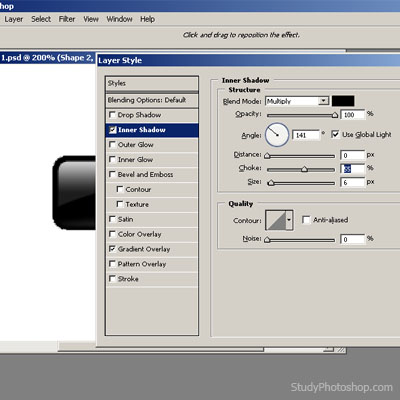
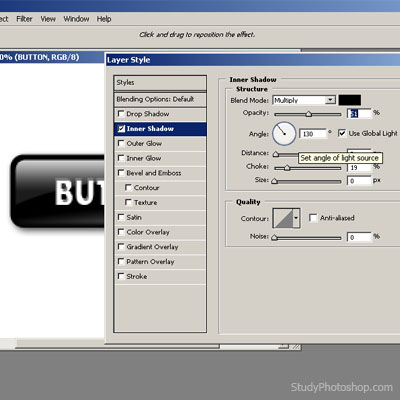
7. Use: Layer => Layer Style => Inner Shadow (and use settings).
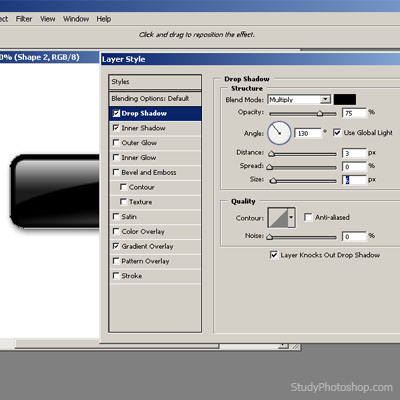
8. Use: Layer => Layer Style => Drop Shadow (and use settings).
9. Type text and then use: Layer => Layer Style => Inner Shadow (and use settings).
10. Get the result.