


Learn to draw nice looking calendar icon with this tutorial. Final output of the tutorial can be seen below:

Start by creating this shape with the rectangle tool :

Select rounded rectangle tool. Set the radius to 10 pixels and draw a round cornered rectangle of the first shape. Group and merge these two layers after you get something like shown in the figure :

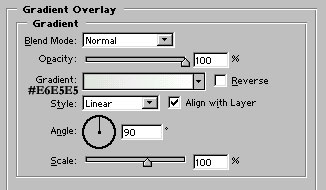
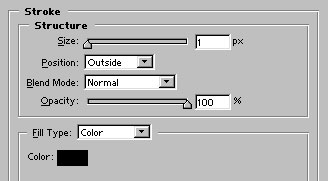
Apply these layer styles in it:
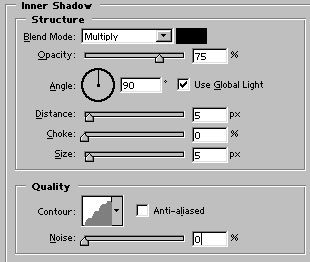
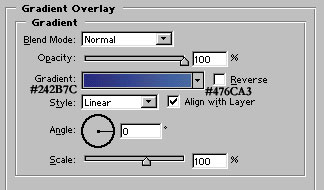

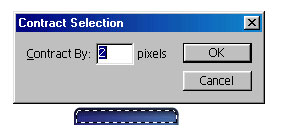
Control click on its layer's name in layer palette to select it. Go to select>modify>contract and contract the selection by 2 pixels as shown:
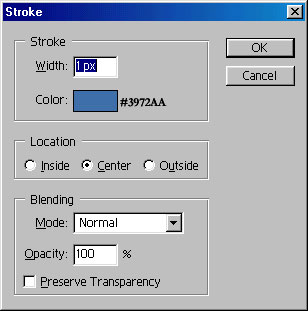
Create a new layer by pressing shift+ctrl+n together. Go to Edit>Stroke. Set the stroke color to #3972AA, Location to Center, Blending to Normal and Width to 1 pixel as shown in the following figure :

I have zoomed in to draw a small shape with the help of rectangle tool :

Apply these layer styles in it:
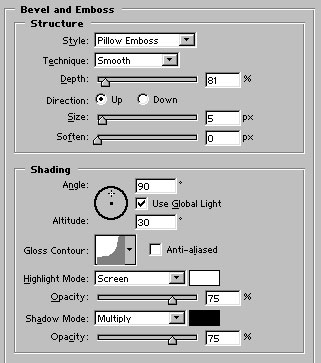
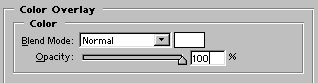

Duplicate and place the layers as shown:

Now, draw this shape with rectangle tool :
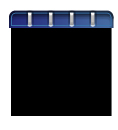
Apply these layer styles in it:
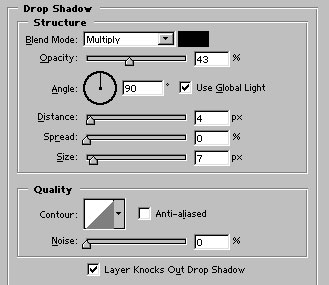
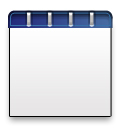
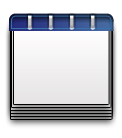
Duplicate and arrange the shape as shown:
Type any text of your choice :

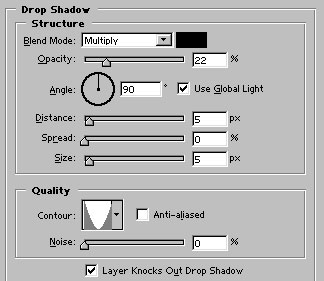
Apply drop shadow as shown :
Our nice looking calendar icon is ready :)
