
In this tutorial, you will learn to design a shopping bag. The design can be used in various design projects like in logos, icons and many more :) Final output of the tutorial can be seen below :

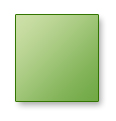
Draw this shape with rectangle tool :

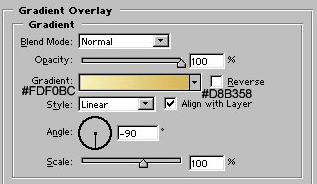
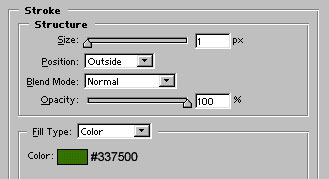
Apply these layer styles in it:
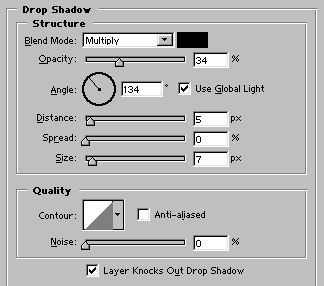
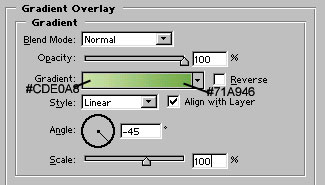
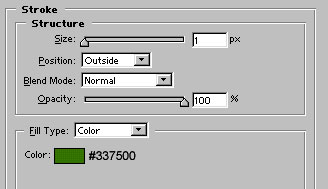
Draw this shape with the help of pen tool. Select #337500 color to fill the shape.

Draw this shape with rectangle tool :

Apply these layer styles in it:
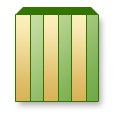
Create a new layer. Set the foreground color to white. Use high feather brush ( I have used 65 pixel brush) and drag the brush over the shape as shown. Our aim is to create a glossy look :)
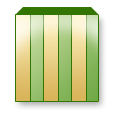
Draw a circle with circle tool. Apply similar layer style in it as we applied for strips. In addition, add default bevel & emboss and 1 pixel wide dark brown color stroke in it. Duplicate and place it as shown:

Create a new layer. Draw the handle of the bag with the help of brush tool. I have used 10 pixel brush.
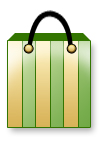
Apply gradient overlay: Create a custom gradient as shown:

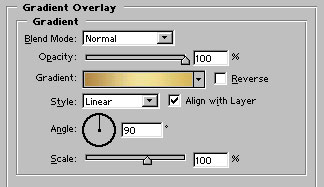
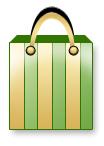
After apply gradient overlay, duplicate the layer and send it to back by pressing shift+alt+ctrl+{. Remove all layer styles in it:
Now select this autoshape.
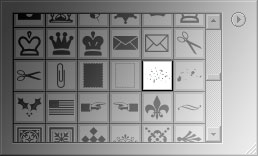
Drag the shape over the bag as shown. Use #DAB65D color to fill the shape. Add 1 pixel wide black color stroke in it:
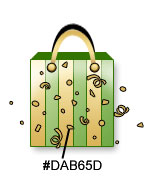
Our shopping bag is ready :)
