


In this tutorial, you will learn to create a cool tube light text. Final output can be seen below -

Type "TUBE" with Impact Font. Set the size to 200 points. Use middle gray color for the text. Press control+t and stretch the text as shown -

Apply these layer styles in it -
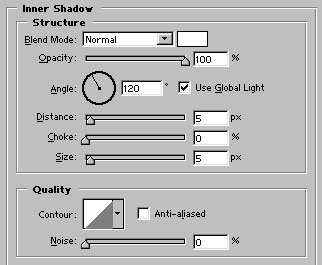
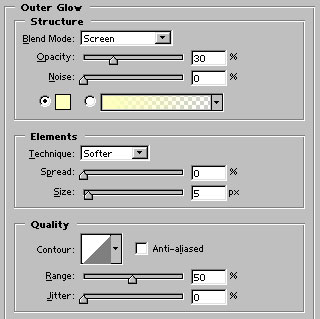

Control+click on the text layer name in layer palette to select it. Go to select>modify>contact Selection and contract the selection by 7 pixels.
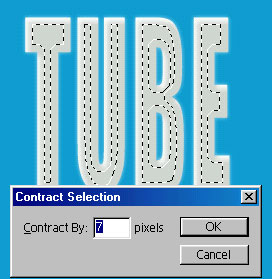
Create a new layer. Fill the selection with Black color.

Apply Bevel and Emboss effect as shown -
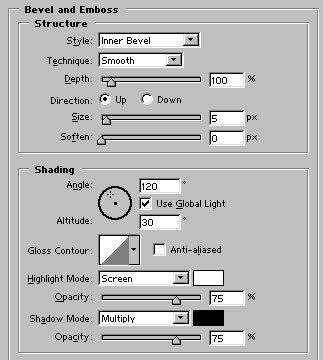
Finally, reduce the opacity of this layer to 16%. Our tube light text is ready :)
