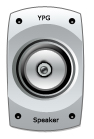
Draw this shape with Rectangle tool :

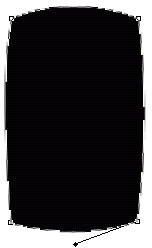
Adjust the nodes as shown :
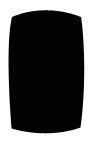
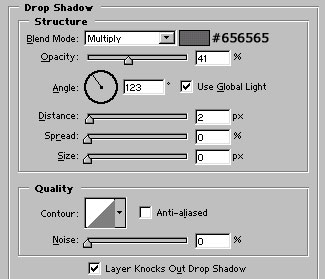
Apply these layer styles in it :
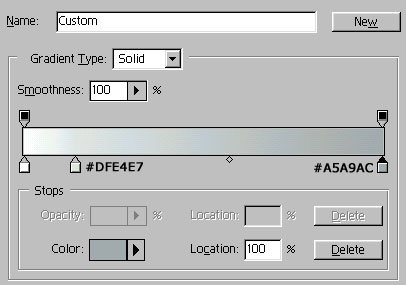
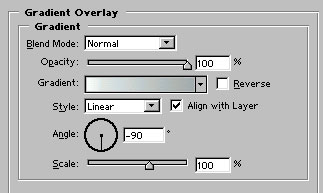
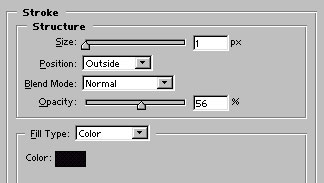
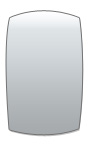
With the pen tool, draw this shape :
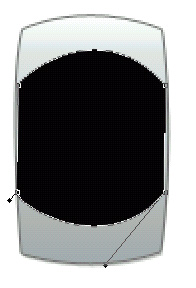
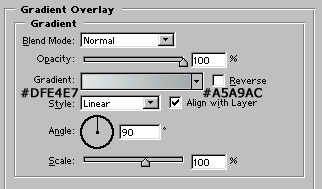
Apply Gradient overlay as shown :
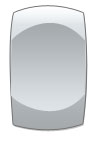
Draw a black color circle as shown :
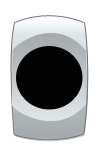
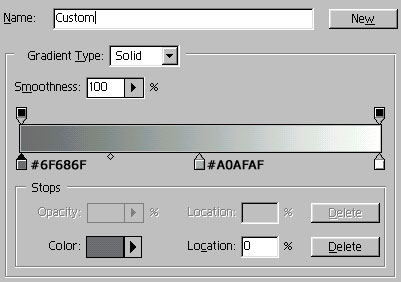
Create this gradient and apply gradient overlay in the circle :
Select this auto shape (
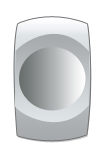
 ) and draw a circle as shown :

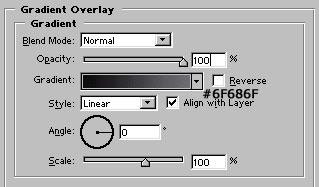
Apply gradient overlay as shown :

Again, draw this circle :

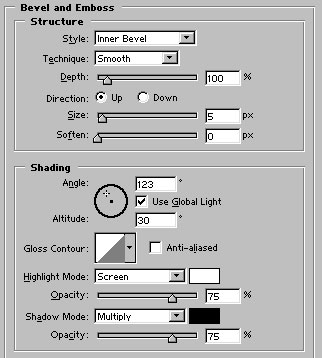
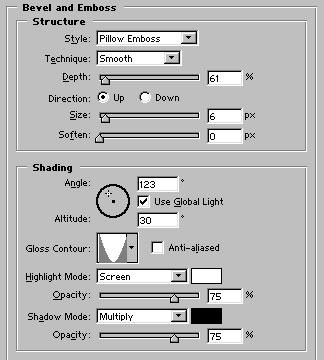
Apply Bevel and Emboss as shown :

Draw this white color circle :
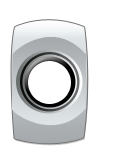
Apply gradient overlay and stroke as shown :
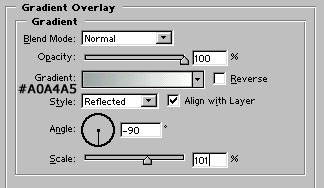
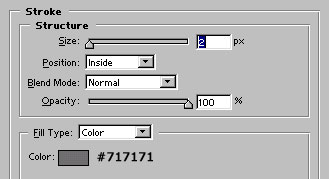
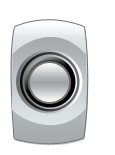
Draw this #A0A4A5 colored circle as shown :

Draw another outline with auto shape (
)

Rasterize the layer. Use Smudge tool with 10-15 strength and drag the brush over the circle until you get something like shown in the figure :

Draw this circle in the middle of the shape :
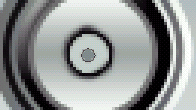
Apply Bevel and Emboss as shown :

Draw small black color circle and one tinny white circle in it with ellipse tool. Group and merge these two layers. Duplicate and place it as shown :
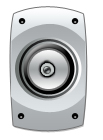
Our Speaker is ready :)