


This tutorial teaches you to create a nice looking rusty text effect. Final output of the tutorial can be seen below :

Create a new file. Fill the background with dark gray color. Type any text of your choice. I have used these settings :


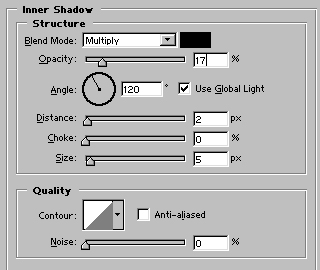
Apply Inner Shadow as shown:

Control+click on text layer's name in layer palette to select it. Go to select>modify>contract and contract the selection by 1 pixel.
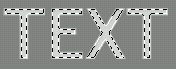
Create a new layer and fill the selection with #808183.

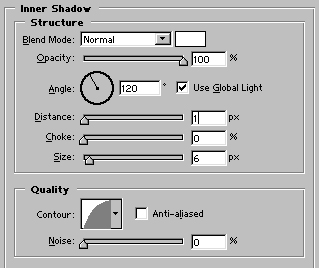
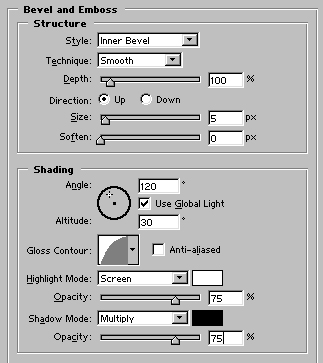
Apply these layer styles in it:

Now, control+click on the first text layer's name in layer palette to select it.

Create a new layer. Select this gradient.
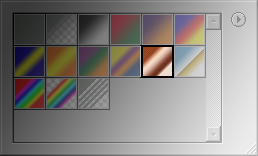
Fill the selection with it. Press control+d to deselect. Press control+shift+} to move the layer to top.

Change its layer style to Vivid Light.
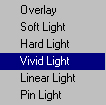

Now, select Smudge tool
 . Set the mode to darken and strength to 40%. Select this brush :
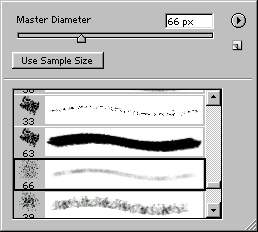
Drag the brush from top to bottom as shown in the figure :

Finally add drop shadow in it. Our rusty text is ready :)
