Start by creating the path with pen tool :
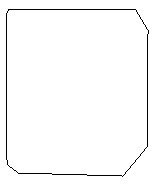
Adjust the nodes to have this shape :
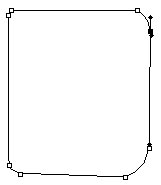
Create a new layer. Press control+Enter and fill the selection with any color of your choice.
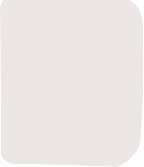
Now apply gradient overlay in it as shown:
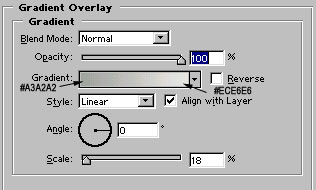
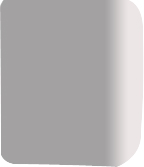
Image after applying Gradient overlay :
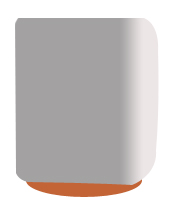
With the help of Ellipse tool, draw this shape as shown. Choose #C26436 color to fill the shape :
Draw another shape with ellipse tool, slightly bigger than the first shape :
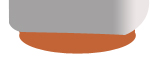
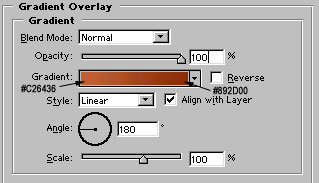
Apply Gradient overlay in it :
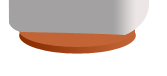
Now, click on the first oval shape to make it active layer. Press control and click on its layer name in layer palette to select it :
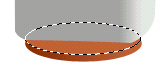
Move the selection 1 pixel upward. Press shift+control+i to invert the selection. Press alt+shift+control together and click on its layer name to select 1 pixel wide selection. We are doing it to make a small 1 pixel line.
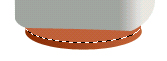
Create a new layer and select high feather brush. Fill the most of the right side portion with white color :
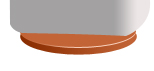
Now, below the modem body, draw black color shape with ellipse tool.
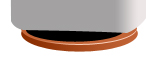
Rasterize the layer and go to filter>blur>gaussian blur and blur it around 4.1 pixels.
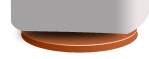
Duplicate the blurred shape and place it below the second shape. Reduce the opacity to 55-60%. This will add shadow to the object.
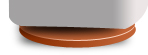
Now, with the help of Rectangle tool draw this shape.
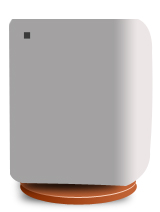
Draw 1 pixel wide white color line at the left side of the shape. Group and merge the 2 layers.

Duplicate and arrange the layers as shown :
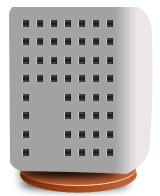
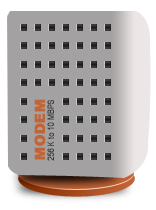
Write any text of your choice in between the blank space :
Now with Ellipse tool, draw these shapes. Color values are shown by the arrow :
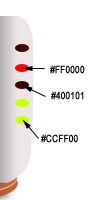
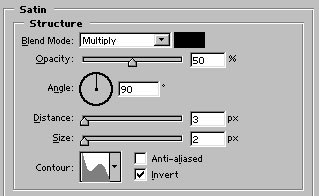
Apply Satin in them as shown :
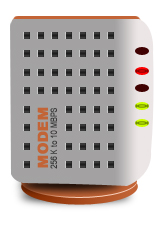
Our final step is to add a small line which I drawn with pen tool. Our ADSL Modem is ready to connect :)