Start by creating this shape with pen tool.

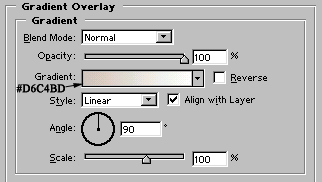
Add gradient overlay as shown:
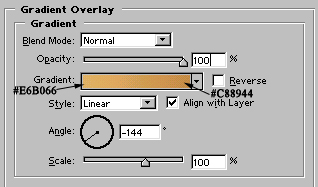
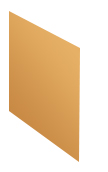
Image after applying gradient overlay :
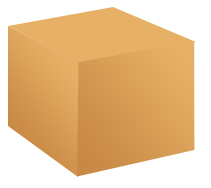
Similarly, draw two more shapes to form a box :
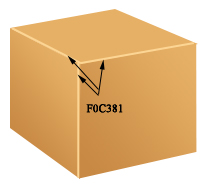
Add 2 pixel wide #FOC381 color lines as shown:
Draw another shape as shown :

Apply similar layer style (gradient overlay) in it.

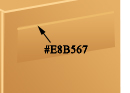
Add 2 pixel wide #E8B567 color line as shown:
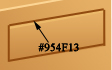
Draw 4 two pixel wide line of #954F13 color as shown:
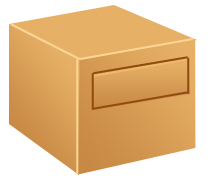
Again draw this shape with pen tool:
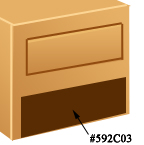
Draw this shape

And this one with pen tool. Fill with similar gradient as we filled the most of the shapes.
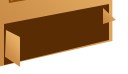
Draw another shape with Pen tool
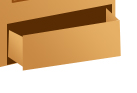
Add #FOC381 colored 2 pixel wide lines as shown:
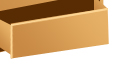
Draw a black color shape with rectangle tool :
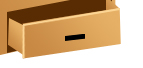
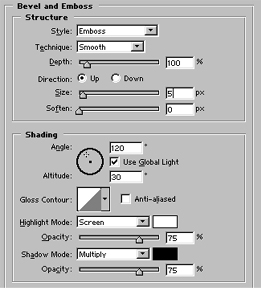
Add these layer styles in it :
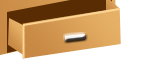
Finally copy the shape and place it as shown. Our Cabinet icon is ready.