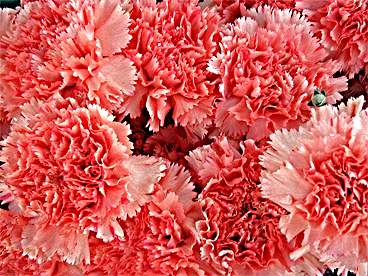
Many times, we find a picture which lacks overall sharpen and details. This tutorial helps you to increase the sharpness of the picture. Start by opening a picture of your choice. I have found this picture while searching on google by typing "flowers".
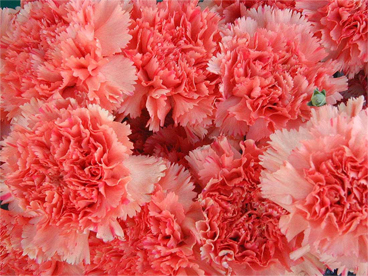
Duplicate the layer by pressing control+j. Desaturate this layer by pressing control+u.
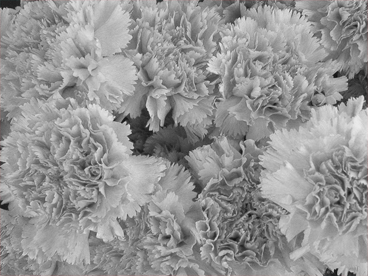
Again duplicate the layer and press control+i to invert.
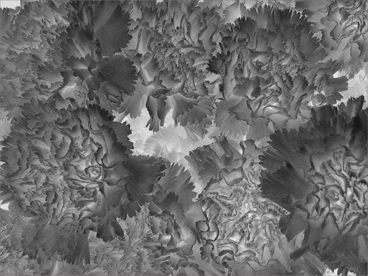
Now, change the 2nd layer's layer style to vivid light.

Now go to filter>Blur>Gaussian Blur and blur it around 3.0 pixels.
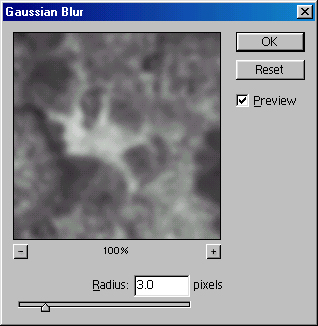
Image after applying gaussian blur:-
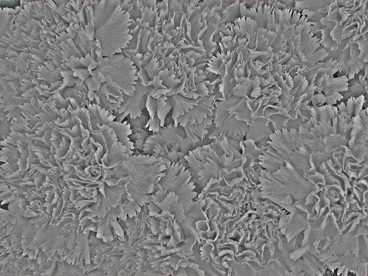
Group and merge all layers (leaving the background layer) and change the layer style from normal to Vivid Light. You now have an image with more sharpness and details :)