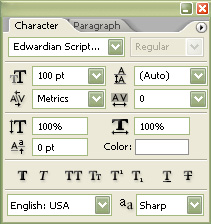
We'll begin this tutorial, by selecting the "Type Tool" while using the below settings. Then type "Lights".
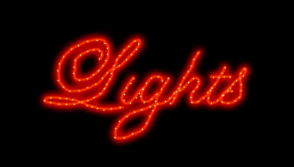
You should now have the below image.

Then, create a new layer, and select the "Brush Tool" at a size of 3 with a hardness of 85% using the color e73101 and begin to draw along the center of the text shapes as I have done below. Once you are satisfied you may delete the actual text layer.

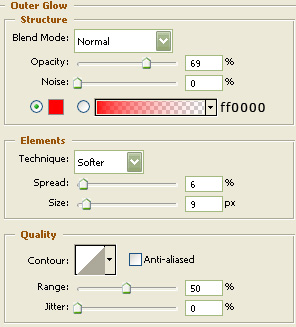
Now right click the "Rim" layer in the layers palette and select, "Blending Options...". Now click on "Outer Glow". You may now click OK.
The Results!!!
Next, select the "Brush Tool" at a size of 2 with a hardness at 0% using the color e7c05b and begin to create dots along the center of your texts' glow. I hope you enjoyed this tutorial.