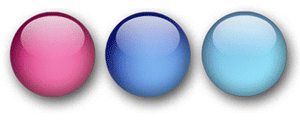
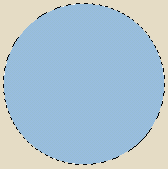
1. Start by create a new document (200 x 200). Create a new layer, call it sphere. Make a sircle with the Elliptical Marquee Too. Hold down the Shift key while dragging to make a syammetrical sircle. Fille the selection with any colour. Deselect.
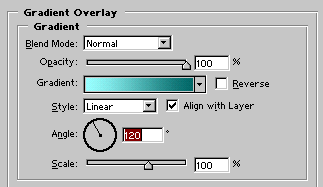
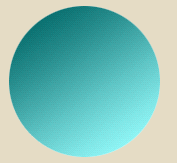
2. Apply a gradient overlay, Layer > Layer Style > Gradient Overlay.
Blend Mode: Normal
Opacity: 100%
Style: Linear
Angle: 120
Scale: 100%
Choose a light green colour (#99FFFF) and a darker one (#006666) for the gradient.
3. Apply Inner Shadow. Layer > Layer Style > Inner Shadow.
Distance: 0 px
Choke: 0 %
Size: 38 px
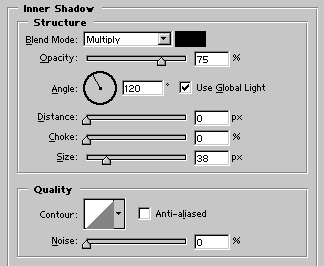
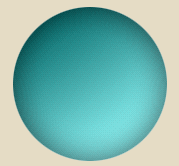
4. Apply Inner Glow. Layer > Layer Style > Inner Glow. Change the colour to #99FFFF, and use these settings:
Source: Center
Choke: 1 %
Size: 2 px
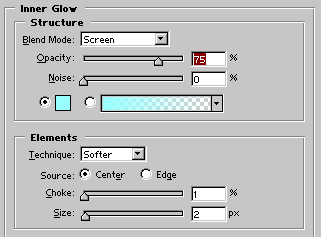
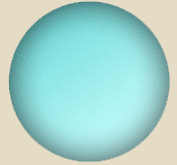
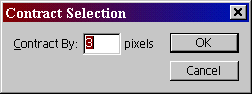
5. Create a new laye and call it reflection. Ctrl + Click on the sphere layer and contract it with 3 pixels. Select > Modify > Contract.
Have white as your foreground colour. Grab the Gradient Tool and choose foreground to transparent. Apply a Linear Gradient from top to bottom as shown below. Hold down the Shift key while dragging to get a stright line.
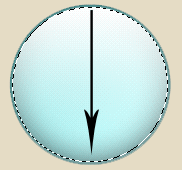
6.Now we are going to make the gradient a bit smaller. Go to Edit > Free Transform (Ctrl + T) and move the bottom handle up to the middle while holding down the Shift key. Then hold down the ALT key and move the left handle towards the middle a few pixels until you get the result as shown below.
Try using different colours and some Drop shadows.

7. I want to take this a bit futher and apply some pattern to the sphere.
Create a new layer between the Sphere layer and the Reflection layer. Use the Brush Tool (B) and draw some pattern in the middle. Ctrl + Click on the Sphere layer to make a selection, then go to Filter > Disort > Spherize and set the Amount to 50 %. Lower the opacity of the layer to 20 %. Voilá!