We'll begin this tutorial, by creating a new canvas at a size of 267 x 154 then select the "Text Tool" and use the below settings. Download the "Carbon Block" typeface here.
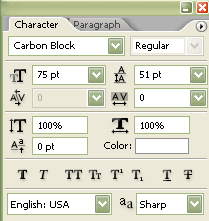
Now type in your text.

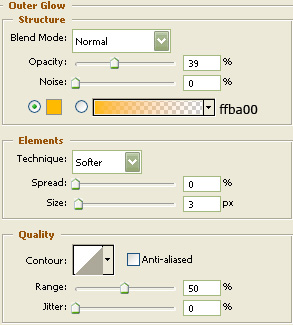
Now right click the text layer in the layers palette and select, "Blending Options...". Now click on "Outer Glow". Do not click "OK" as of yet. Still more to do.
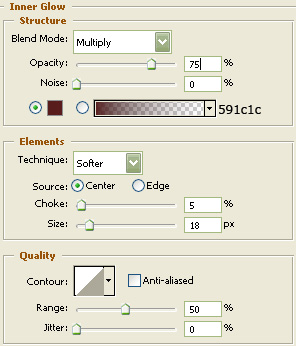
Now click on "Inner Glow". Do not click "OK" as of yet. Still more to do.
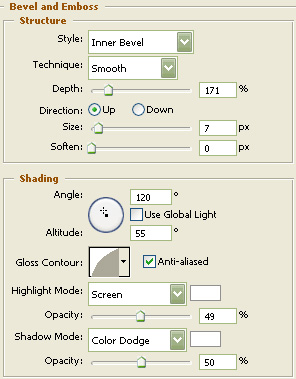
Now click on "Bevel and Emboss". Do not click "OK" as of yet. Still more to do.
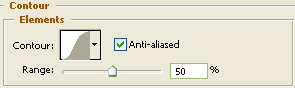
Now click on "Contour". Do not click "OK" as of yet. Still more to do.
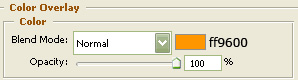
Now click on "Color Overlay". You may now click OK.
You should now have the below.

The Results!!!
A sword was added but other than that, this one is done. I hope you enjoyed this tutorial.