We can begin by creating a new canvas at a size of 380 x 184 using the color ddb570.

Now go to the main menu and select "Filter", "Noise" then, "Add Noise...".
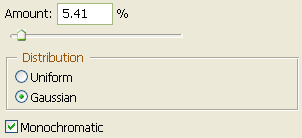
You should now have the following:

Now go to the main menu and select "Filter", "Blur" then, "Motion Blur".
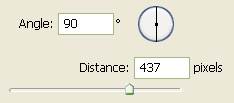
You should now have the following:

Now go to the main menu once again and select "Filter", "Distort" then, "Ripple".
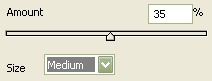
You should now have the following:

Using the "Line Tool" and the color bd8d57, draw a line (2 Pixels) while holding the "Shift" key in on your keyboard, as I have done below.

Now go to the main menu once again and select "Filter", "Distort" then, "Ripple".
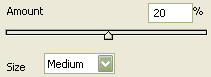
You should now have the following:

Using the "Line Tool" again and the color black, draw a series of lines (2 Pixels) while holding the "Shift" key in on your keyboard, as I have done below.
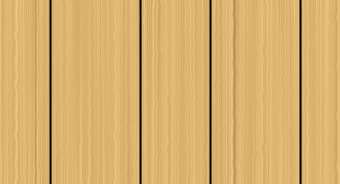
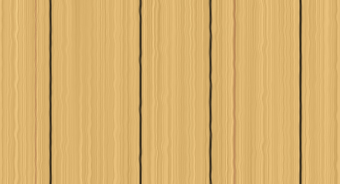
Now go to the main menu once again and select "Filter", "Distort" then, "Ripple".
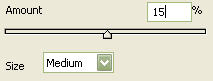
You should now have the following:
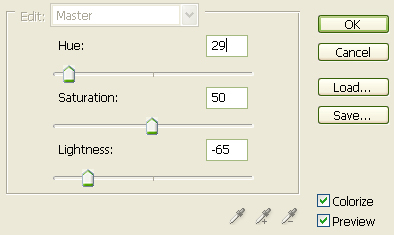
Go to the main menu one final time and select "Image", "Adjustments" and lastly "Hue/Saturation" and use the settings below.
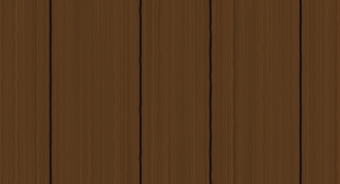
You should now have the following:
Then go ahead and choose the text tool. I chose "Franklin Gothic Medium" as the typeface at a size of 75 using the color 694626. Now type wood and move on to the next step.

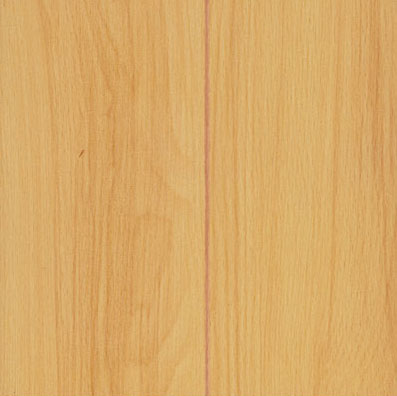
Before going any further with this tutorial, you will need to download the following wood pattern. Once it is open in Photoshop, go to the main menu and select "Edit" then "Define Pattern" Give it it a name and click "OK".
Now right click the wood text layer and select, "Blending Options...". Now click on "Drop Shadow".
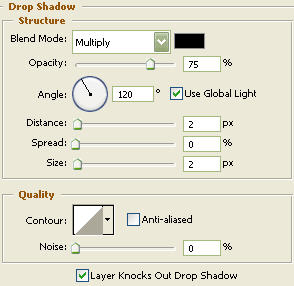
Do not click "OK" as of yet. Still more to do.
Now click on "Inner Glow".
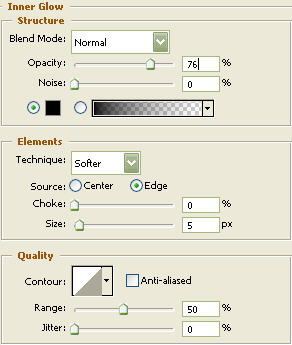
Do not click "OK" as of yet. Still more to do.
Now click on "Pattern".
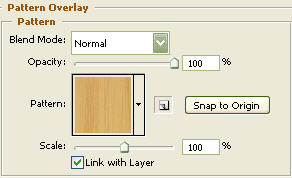
You may now click "OK."
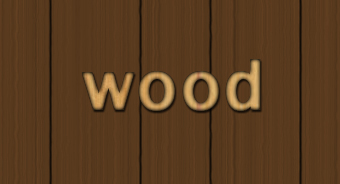
The Results!!!
I hope you enjoyed this tutorial.