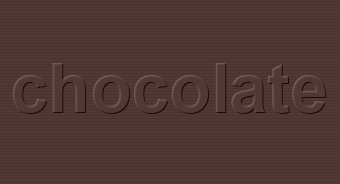
We'll begin this tutorial, by changing the canvas background to 523835 then by selecting the "Type Tool." Select Arial Bold as the typeface at a size of 68 with the color set to 523835. Type "chocolate" and go on.

Now that you have your text, you can now right click on the text layer and select, "Blending Options...". Now click on "Drop Shadow".
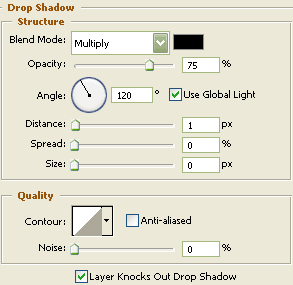
Do not click OK yet... still more to do
Now click on "Inner Shadow".
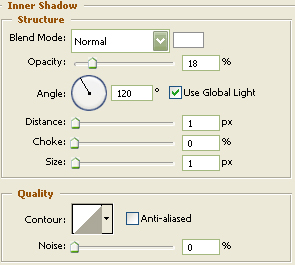
Do not click OK yet... still more to do.
Now click on "Bevel and Emboss".
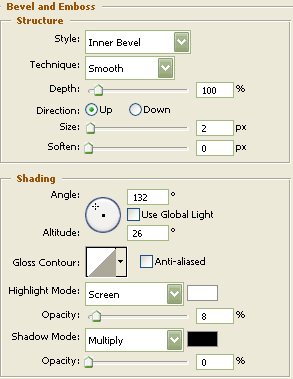
You may now click OK.
The Results!!!
Easy as pie, huh? Hope you liked this tutorial.